
Budgets
Plan income and expenses month by month, see how the books compare, and be told when they drift from plan.
A budget sets what you expect each income and expense account to show each month. Once it is in, you see month by month whether sales and costs are on plan, by account and in total.
Open Budgets. Anyone who can see the financial statements can read budgets; making and changing them needs permission to manage budgets (accountants have it) and a plan that includes insights. Comparing a budget with the books needs that plan too.
Make a budget
Choose New budget, then:
- Name it, for example "2027 plan".
- Pick the First month and the Number of months, from 1 to 24. A fiscal year is 12.
- Split by tag if you want to budget each branch, project or other tag on its own. Leave it on Don't split to budget the whole business.
A business keeps up to 50 budgets. Budgets may overlap: for each month, the one that starts latest counts in the dashboards, alerts and the income statement's budget column.
Enter the amounts
The grid lists your active income and expense accounts down the side and the months across. Type each month's amount in the base currency, as the income statement shows it: income and expenses are both positive. Rows you leave empty aren't saved.
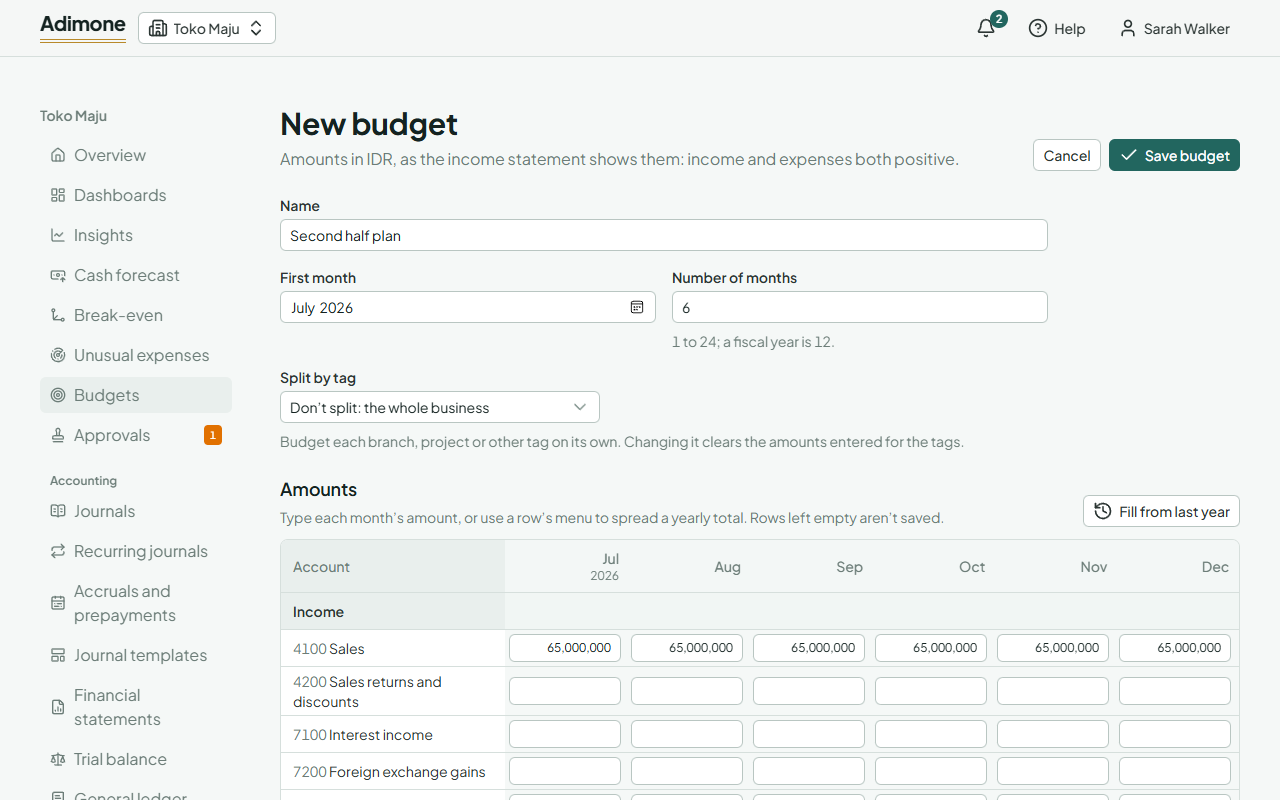
To fill the grid faster:
- Fill from last year puts in what each account showed in the same months a year earlier. Check the figures and adjust them before saving. In a budget split by tag, pick the tag first.
- On a row's menu, Spread a total over the months shares a yearly total evenly; any amount too small to share goes to the first months. Copy the first month to every month repeats it, and Clear the row empties it.
The totals under each group and the net income at the bottom add up as you type.
In a budget split by tag, choose the tag under Amounts for to see its grid. Not tagged holds amounts that belong to no tag in particular. Changing the tag group clears the amounts entered for the tags.
Choose Save budget. You can edit it later, and every change is in the change history, where it can be undone.
Read budget against actual
Open a budget from the list. At the top, three gauges compare the books with the budget:
- Revenue against budget and Expenses against budget, as a percentage of the budget.
- Net income against budget, in money.
The bar is what the books show and the mark is the budget. Green means on the right side of the plan: income at or above it, expenses at or below it.
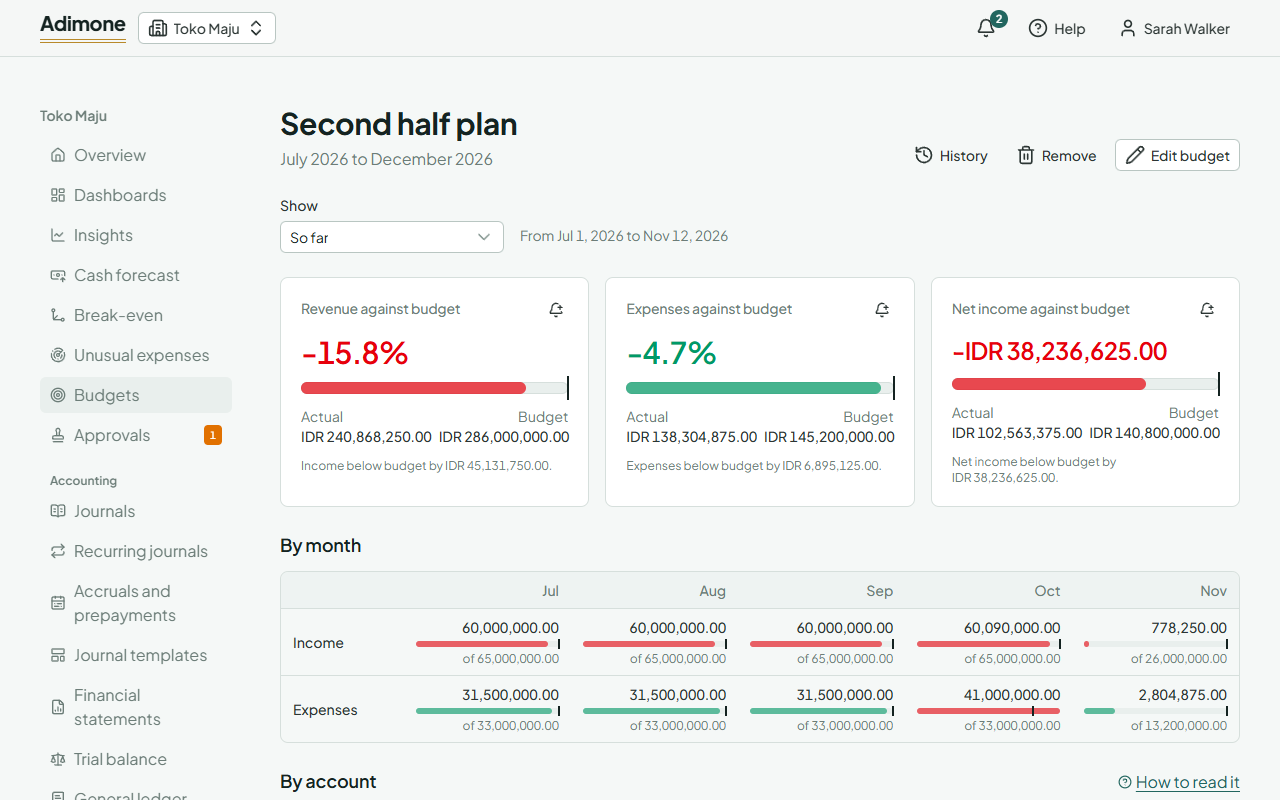
Under Show, choose So far (from the budget's first month to today), the Whole budget, or one month. A month still under way counts its budget by the days so far, so the middle of a month compares half the month's budget with what has been posted. In a budget split by tag, pick a tag to see only its amounts.
By month shows income and expenses each month against their budget. By account lists every account budgeted or posted, with the Variance (actual less budget) and its percentage; choose an account to see the entries behind it.
You can also add a budget column to the income statement, or put the three figures on a dashboard.
Be told when off budget
Choose the bell on a gauge to add an alert on it, for example when revenue is more than 10% below budget for the month. The alert uses each month's own budget, so it keeps working when next year's budget starts.