
Track branches, departments and projects
Tag entries with a branch, a project or anything else to see figures for each.
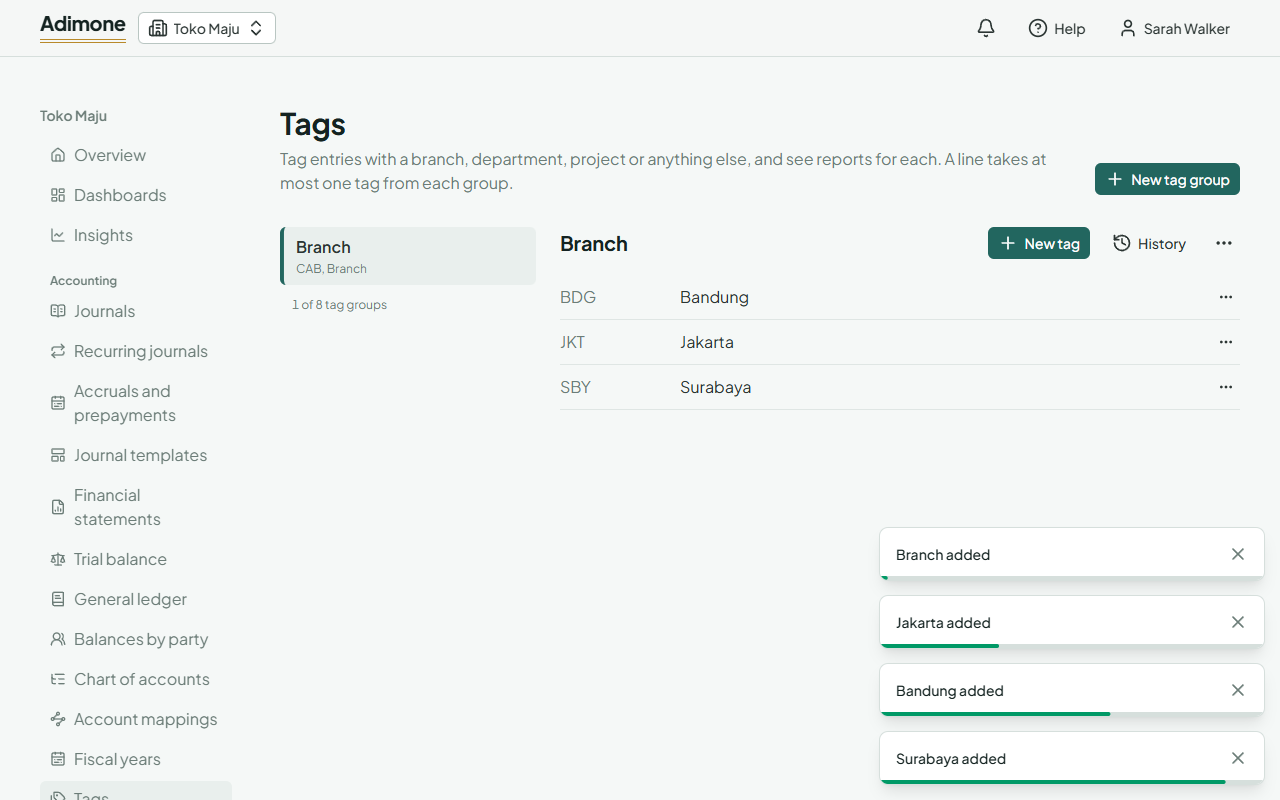
Tags let you see your figures per branch, department, project or anything else you track, without separate accounts for each. Tags come in groups: a tag group (say Branch) holds its tags (Jakarta, Bandung). A journal line can carry one tag from each group, so a line can be tagged Jakarta and Project Alpha, but not Jakarta and Bandung at once.
Most small businesses don't need any. Add a tag group when you want separate figures for parts of the business.
Add a tag group and its tags
- Open Tags and choose New tag group.
- Enter a Code and a Name, pick its Kind, and choose Add tag group.
- With the group selected, choose New tag for each branch, department or project, with its code and name.
A business can have up to 8 tag groups, each with up to 5,000 tags.
Change, deactivate or remove
Use the ⋯ menu next to a tag group or a tag:
- Edit changes its code or name.
- Deactivate stops new entries using it; entries that already carry it keep it. Reactivate brings it back.
- Remove deletes a tag no entry uses, or a tag group without tags.