
Issue withholding slips (e-Bupot) through Coretax
How a business that withholds PPh 23, PPh 4(2) or PPh 21 from its vendors exports the slips for Coretax e-Bupot, issues them there, types back their numbers and gives each vendor their slip.
When your business withholds income tax from a vendor's bill (PPh 23 on services, final PPh 4(2) on rent, PPh 21 on a person's fees), it owes the vendor a withholding slip (bukti potong), issued through the tax office's Coretax e-Bupot. Adimone makes the slip when you post the bill and prepares the file Coretax imports. The upload and the issuing happen in Coretax, so the trip has a part outside Adimone: this article walks through all of it.
Before you start
You need:
- Your business's NPWP in the business details.
- Your Coretax account, with the electronic signature you issue slips with.
- The Indonesia rule pack applied in Taxes: its withholding codes (PPH23, PPH23-R, PPH4-2-SEWA, PPH21-BP) know their slip and tax object code.
- Each vendor's Tax ID (NPWP, or NIK for a person) on the vendor and the bill.
Then use a withholding code on the bill's lines, or as the vendor's Taxes on purchases from them. Each bill you post with one gets a slip per withholding code in Withholding slips, under Purchasing, whether or not your business is a VAT collector.
The round trip
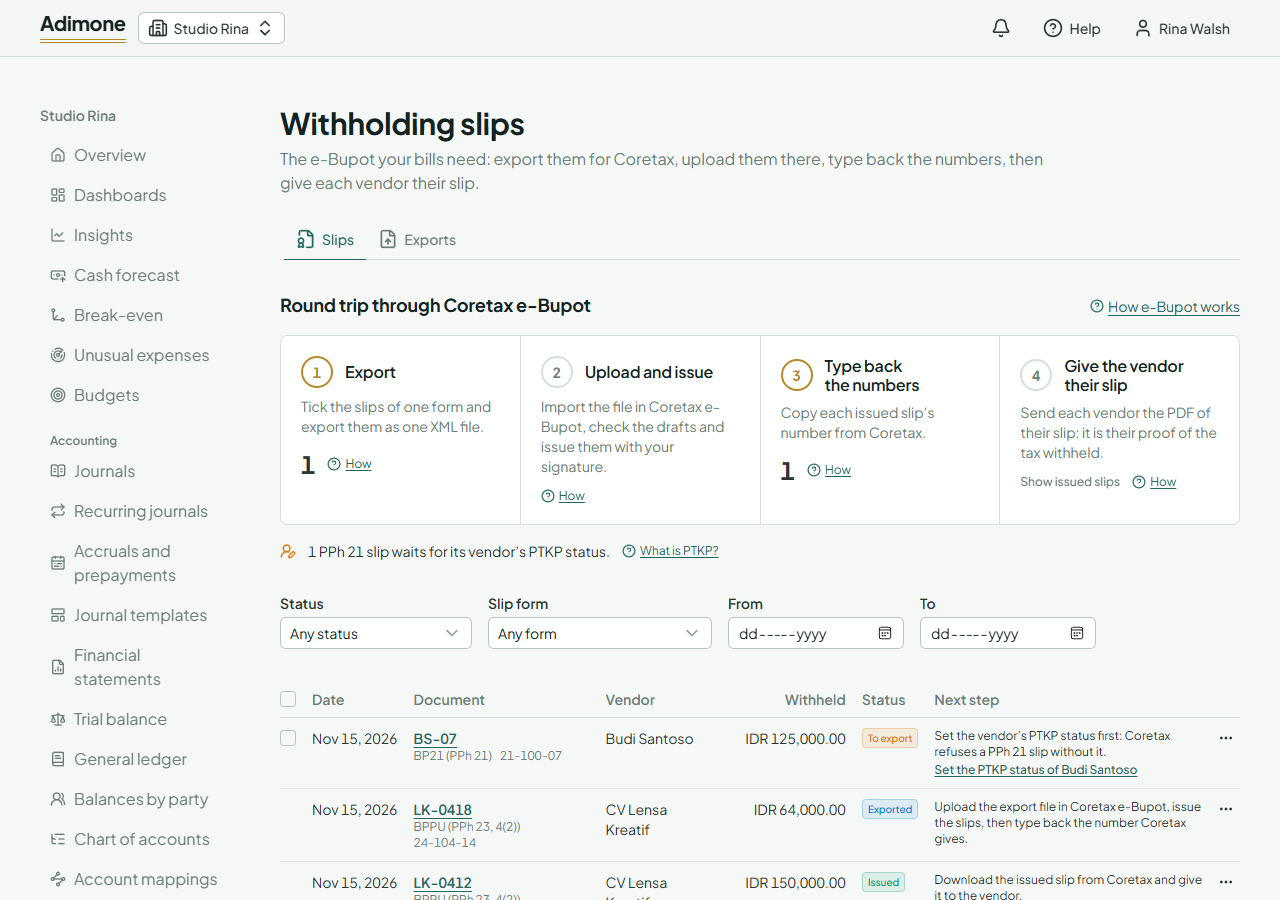
Withholding slips opens on the round trip through Coretax e-Bupot, with the number of slips waiting at each step:
- Export: slips you haven't sent yet.
- Upload and issue: done in Coretax, with the file from step 1.
- Type back the numbers: slips exported and waiting for the number Coretax gives.
- Give the vendor their slip: done outside Adimone, once a slip is issued.
Under the steps, Adimone lists what else waits: PPh 21 slips whose vendor has no PTKP status yet, slips to correct after a debit note and slips to cancel after a voided bill. Each slip in the list also says its Next step, and the home page reminds you while any step waits.
PTKP status for PPh 21
A PPh 21 slip for a person who isn't your employee (BP21) must carry the person's PTKP status: whether they are single (TK) or married (K), and how many dependants they have (0 to 3). It doesn't change the tax Adimone works out (PPh 21 for non-employees is withheld on half the gross at the income tax rates whatever the status), but Coretax refuses a slip without it, and a whole file for one such slip.
The status comes from the vendor: ask them for it, for example with their invoice. To record it:
- Open the vendor in Customers and vendors (a PPh 21 slip waiting for it links straight there with Set the PTKP status).
- Make sure the vendor is a Person and a vendor.
- In PTKP status, choose theirs, such as TK/0 for a single person without dependants.
- Save the vendor.
Only a person who is a vendor has a PTKP status. If you see the request for a company, its bill uses the wrong code: a company's services take PPh 23. The status is stored encrypted and shown only to members who see vendors.
Export the slips
- In Withholding slips, tick the slips marked To export (or tick the box in the header to take all of one form). BPPU slips (PPh 23 and 4(2)) and BP21 slips (PPh 21) go in separate exports: Coretax imports them on separate pages.
- Choose Export.
Adimone checks that everything Coretax needs is there: your NPWP, each vendor's tax ID, each PPh 21 vendor's PTKP status and, for a bill in another currency, the tax office's exchange rate (Kurs Pajak) for its week (see Enter the weekly Kurs Pajak). If something is missing it names it and exports nothing. It then opens the export, where the rest of the trip continues. An export holds up to 200 slips.
Upload the file in Coretax e-Bupot
On the export's page:
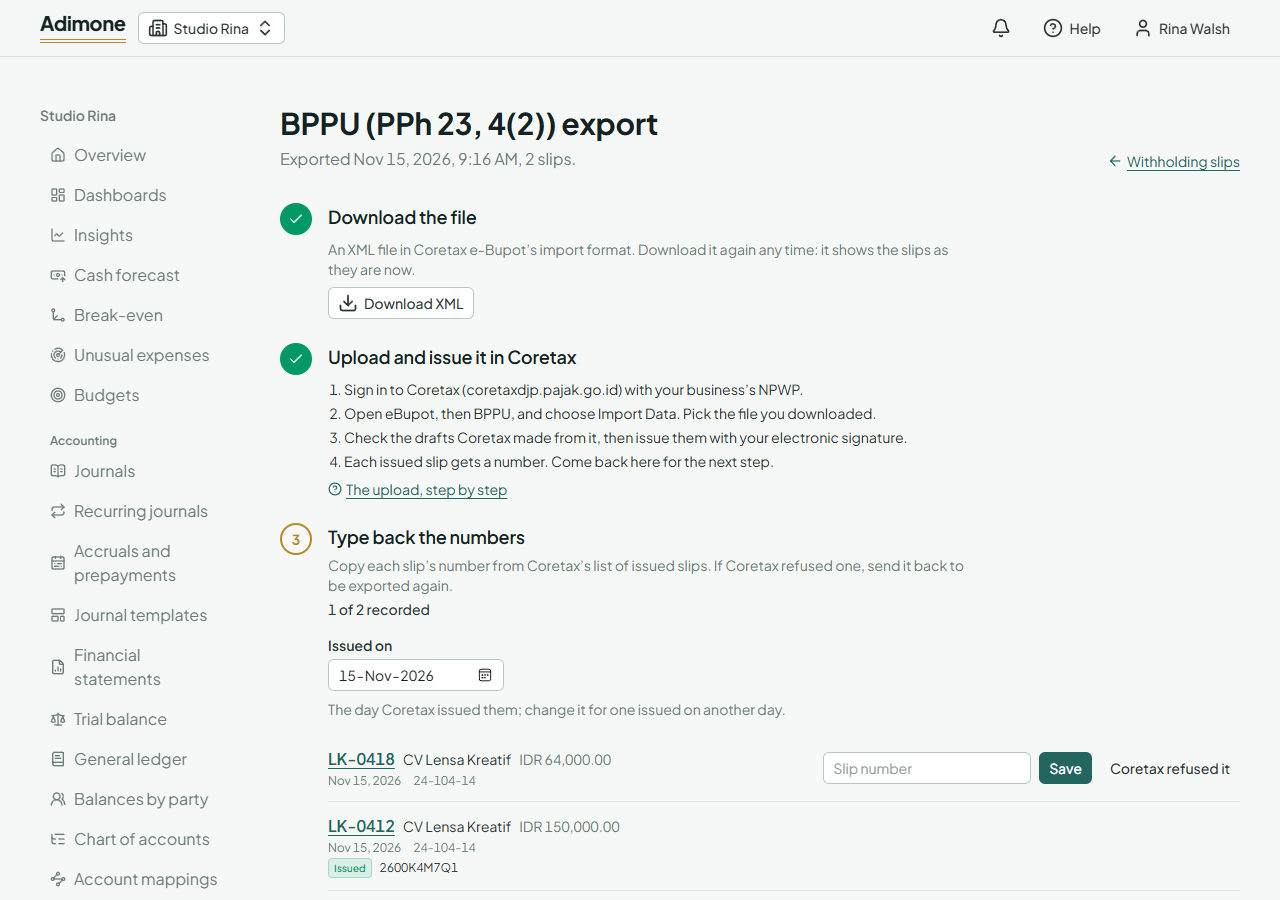
- Choose Download XML. You can download it again at any time; it always shows the slips as they are now.
- Sign in to Coretax (coretaxdjp.pajak.go.id) with your business's NPWP.
- Open eBupot, then BPPU for a BPPU export or BP21 (Bukti Pemotongan Selain Pegawai Tetap) for a BP21 export, and choose Import Data. Pick the file you downloaded.
- Check the drafts Coretax made from it, then issue them with your electronic signature.
- Back in Adimone, choose I’ve uploaded it, so the export shows the next step.
Type back the numbers
Once Coretax issues a slip, it gives it a number of letters and digits, listed with the issued slips.
- On the export's page, set Issued on to the day Coretax issued them.
- Type each slip's number into its row and choose Save.
The export counts the numbers recorded. You can also record a single number from the list: open the slip's menu and choose Record the number. The number then shows on the bill's page, under Withholding slips.
Give the vendor their slip
The slip is the vendor's proof of the tax you withheld: they credit it against their own income tax. For each issued slip, download its PDF from Coretax and send it to the vendor, for example with the payment. A vendor with their own Coretax account also finds it there. Then choose I’ve sent them on the export's page, which shows Done.
When Coretax refuses one
If Coretax refuses a slip, for example for a wrong vendor NPWP, choose Coretax refused it on its row (or in its menu in the list) and note what Coretax said. It goes back to To export. Correct the cause, such as the vendor's tax ID, and export it again: the new file shows the corrected details.
Corrections after a debit note
A debit note on a bill with a slip changes what was withheld, so Adimone makes a correction of the bill's latest slip, carrying the corrected totals. Coretax's import makes new slips only, so a correction isn't exported:
- Make sure the slip it corrects has its number (record it first if not).
- In Coretax e-Bupot, open the issued slip and correct it (pembetulan) to the totals the correction shows, then issue it.
- In Adimone, open the correction's menu, choose Record the corrected slip’s number and type the number Coretax gave.
The original slip is then shown as Corrected.
Voided bills: cancel the slip
Voiding a bill or debit note whose slip wasn't exported yet cancels the slip too. Once it was exported, the slip is marked To cancel, because only Coretax can cancel it. Cancel it in Coretax e-Bupot, then open its menu in Adimone and choose Record it canceled in Coretax. If Coretax issued it before you recorded its number, record the number first.