
Roles and permissions
Give each person access to what their job needs, with built-in roles or your own.
A role is a set of permissions. Every member has exactly one role, and every role can at least view the business.
Built-in roles
| Role | For |
|---|---|
| Owner | The person responsible for the business and its subscription. Holds everything. There's always exactly one. |
| Administrator | Runs the business day to day, including members and settings. |
| Accountant | Keeps and checks the books. |
| Bookkeeper | Fills in the journal templates your accountant sets up and saves them as drafts, which someone allowed to post then checks and posts. Sees only the journals they made. |
| Sales, Purchasing, Inventory, Cashier | Staff who work in one area. |
| HR and payroll | Payroll and employee records (in a later release). |
| Viewer | Can look, but not change anything. |
| External accountant | Your outside accountant or tax adviser, who keeps and checks the books like an accountant. Free: see below. |
| External accountant (read only) | Your outside accountant, who can look at the books but not change them. Free: see below. |
Built-in roles can't be changed.
What each role sees
Each role sees only the information its job needs. Salespeople don't see your suppliers or what things cost you, purchasing doesn't see your customers or selling prices, and the warehouse sees items and quantities without prices.
| Role | Customers | Vendors | Selling prices | Purchase prices |
|---|---|---|---|---|
| Owner, Administrator, Accountant | Sees and changes | Sees and changes | Sees and changes | Sees and changes |
| Sales | Sees and changes | No | Sees and changes | Only while the owner allows it |
| Purchasing | No | Sees (the accountant adds and changes vendors) | No | Sees and changes |
| Inventory | No | No | No | No |
| Cashier | Sees | No | Sees | Only while the owner allows it |
| Viewer | Sees | Sees | Sees | No |
Someone who is both a customer and a vendor shows each person the side they may see: a salesperson sees their customer details, but only someone who manages vendors too can change them. The change history hides what a person may not see in the same way.
In a small business, people often do several of these jobs. Give them the Accountant role, or your own role with the permissions they need.
Your external accountant
Every business can invite one external accountant for free, on any plan, including Free. They don't count toward your plan's user limit, and they keep working when other members can only read.
- Open Members and choose Invite.
- Enter your accountant's email address and choose External accountant (they can adjust the books) or External accountant (read only).
- Send the invitation.
There is one such place per business: to invite someone else, remove the current external accountant or revoke the open invitation first. You can switch between the two roles at any time, and remove them whenever you like.
Create your own role
Custom roles are part of the Growth plan.
- Open Roles and choose New role.
- Give it a name and, if you like, a description.
- Tick the permissions it should hold. You can only grant permissions your own role holds. Seeing customers, vendors, selling prices and purchase prices are permissions of their own, so a role sees only what you tick.
- Choose Save changes.
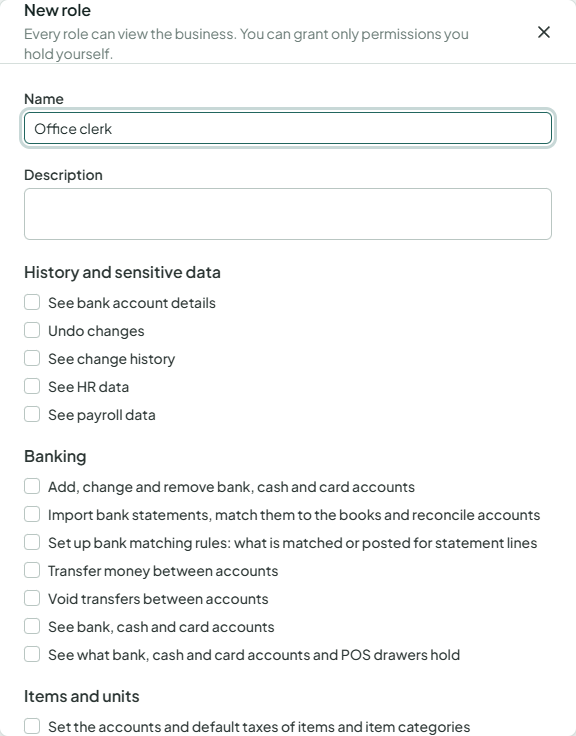
Then give the role to members on the Members page. Changing a role's permissions applies to everyone who holds it at once.
Some permissions are better not held together, such as managing both customers and vendors. In a business of more than 3 people, saving a role that combines them shows a note, and Roles lists the combinations next to each role (Risky combinations). It never stops you saving.
Delete a role
A custom role can be deleted only when no member holds it and no open invitation offers it.