
Undo a change
Put a change back as a new change, through the same checks as any edit, after seeing exactly what the undo will do.
An undo puts a change back by making a new change: an account gets its old name again, a removed tag comes back, a posted journal is offset by a reversing journal. Nothing in the change history is erased, the undo is listed there too, and you can undo the undo.
The owner can undo. Other members need Undo changes in their role; no built-in role has it, so the owner adds it to a custom role.
Undo one change
- Open the change from Change history, or from a record’s History.
- Choose Undo. A preview shows what the undo will do before anything changes.
- Read the preview, add a reason if you like, and choose Undo 1 change.
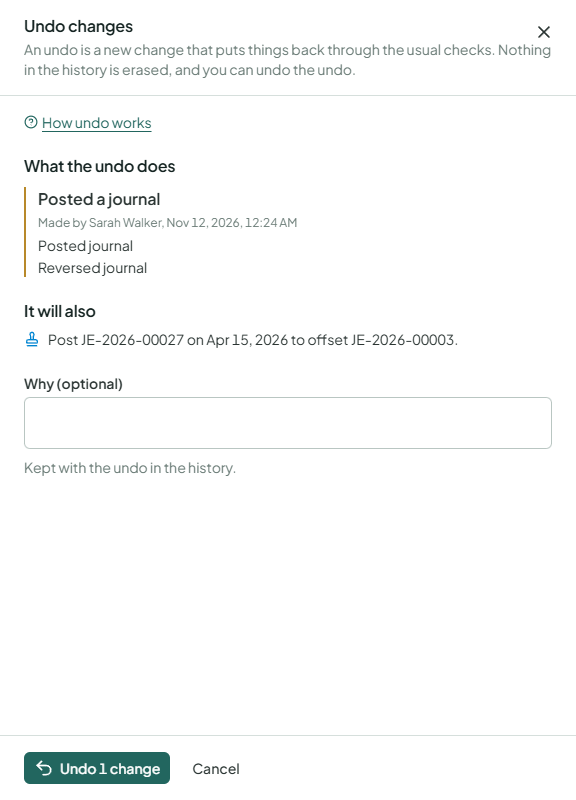
The preview lists:
- What the undo does: each record it puts back.
- It will also: side effects, such as the journal posted to offset a posted one.
- What stays: parts that are left as they are, with the reason. A recurring journal’s schedule isn’t set back, for example, and the journals it already made stay.
- Please confirm: consequences you tick before the undo can go ahead. When a journal’s date is locked or its period closed, the offsetting journal is dated today instead.
- What stops it: reasons it can’t be undone now, such as a code that is used again, an account with postings, or a change that can never be undone (creating the business, a payment the provider has settled, an email already sent).
When a field was changed again later
If someone changed the same field after the change you are undoing, the preview lists it under Changed again later. Either:
- turn on Undo the later changes too: they are undone first, newest first, and listed with Later change; or
- tick Keep its current value for the fields to leave as they are.
Undo everything someone did
- In Change history, choose the person in Who and a From day (and To, if you like). Leave Action empty.
- Choose Undo these changes. The preview covers every change in the window, newest first.
- If anything stops it, narrow the window or undo the changes one by one.
An undo of many changes is all or nothing: either every change is undone, or none is. One undo takes at most 200 changes.
If something changed meanwhile
The undo checks the records again when you confirm it. If someone changed them after the preview, you see the new preview instead; check it and undo again.
An undo is allowed even when your plan no longer includes a feature, but not while the business is read-only for another reason, such as being archived.