
Set up integrations
Connect email, CAPTCHA, Google sign-in, payment gateways, exchange rates, metrics and IP location; test them, switch them on, and change their secrets safely.
Integrations are the outside services your Adimone server uses: the mail server that sends every link, the gateways businesses pay through, the monitoring that watches the server. Superadmins set them up under Integrations in the admin console. Until Email is on, nobody can sign up, recover access or accept an invitation, so the console's dashboard lists what is still missing under Setup.
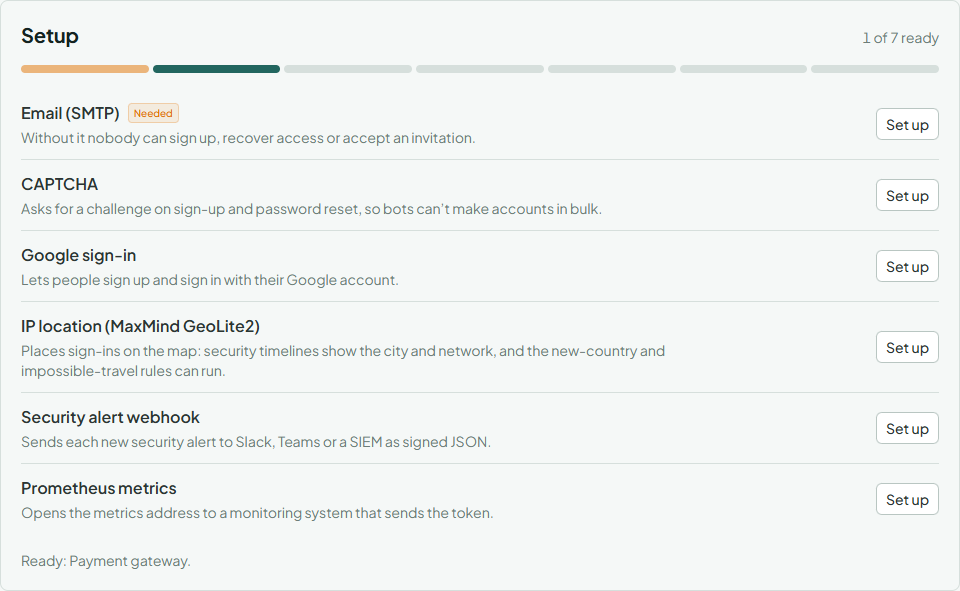
The integration cards
The page groups the cards into sign-up and sign-in, payment gateways, data feeds, and monitoring. Each card says what the integration does and whether it is On, Off (set up but not in use) or Not set up; the coloured edge shows the same at a glance.
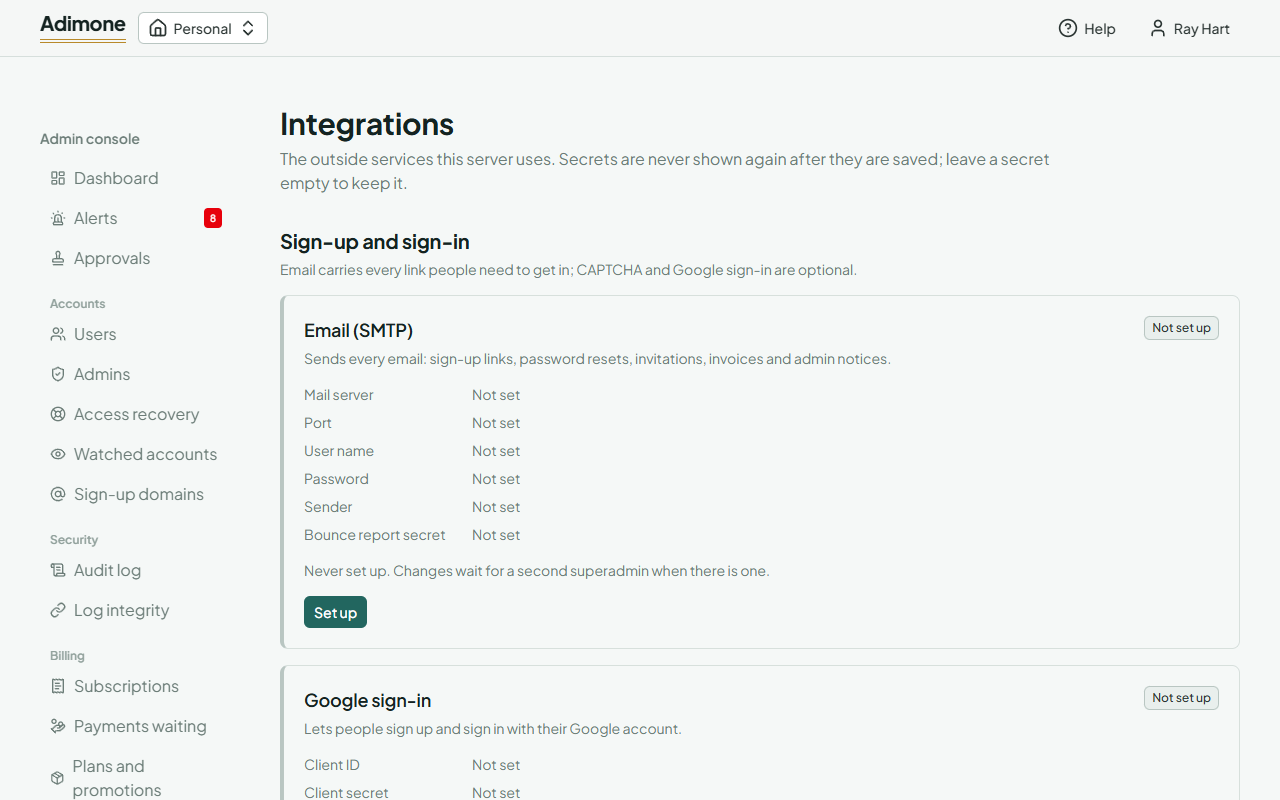
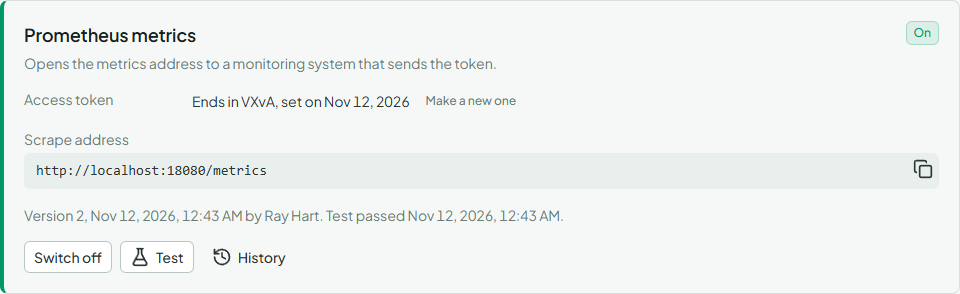
A card lists its fields. Secrets are never shown again once saved: the card only says when one was set and, for long ones, its last four characters. Some cards also show values to paste elsewhere, such as the redirect address Google asks for or the webhook address of a payment gateway; choose the copy button next to one.
Set one up or change it
- Choose Set up (or Change on a card that is already set up).
- Fill in the fields. A secret you leave empty keeps its saved value.
- To use it at once, tick Switch it on after saving: the test runs first, and it is switched on only if the test passes.
- Write the reason, which is kept in the audit log, and choose Save changes. You may be asked to confirm with a passkey.
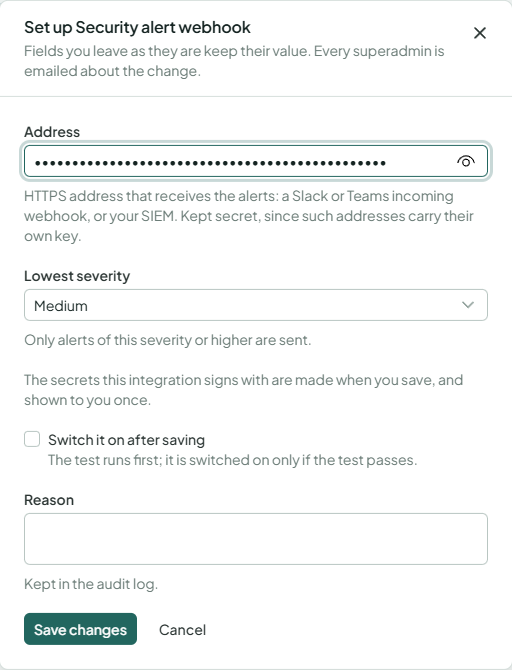
Every superadmin gets an email about each change. Email, Google sign-in, the alert webhook and online payment gateways have a high impact: once there are two superadmins, saving new settings or switching one on waits for the other's approval. The request shows the new values of the plain fields; secrets stay hidden. Switching off and making a new secret apply at once, so one person can always stop a leaked credential.
Test, switch on and off
Test checks the saved settings without changing them: it logs in to the mail server, asks Google or the gateway whether the keys work, or sends a test message to the webhook. When it fails, the card says why. The email card also has Send me a test email, which sends a message to your own address.
Switch off stops using the integration at once and keeps its settings; Switch on runs the test first.
Secrets the server makes
Some secrets are made by the server, not typed in: the token a metrics scraper sends, the key that signs alert webhooks, the one that signs bounce reports. They are made when you first save (or switch on) the integration and shown to you once, so copy them before you close the window. One made when a second superadmin approves a change is shown to nobody; make a new one to see it.
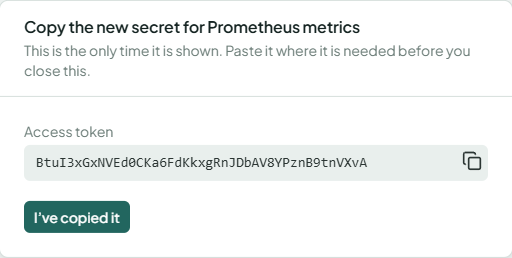
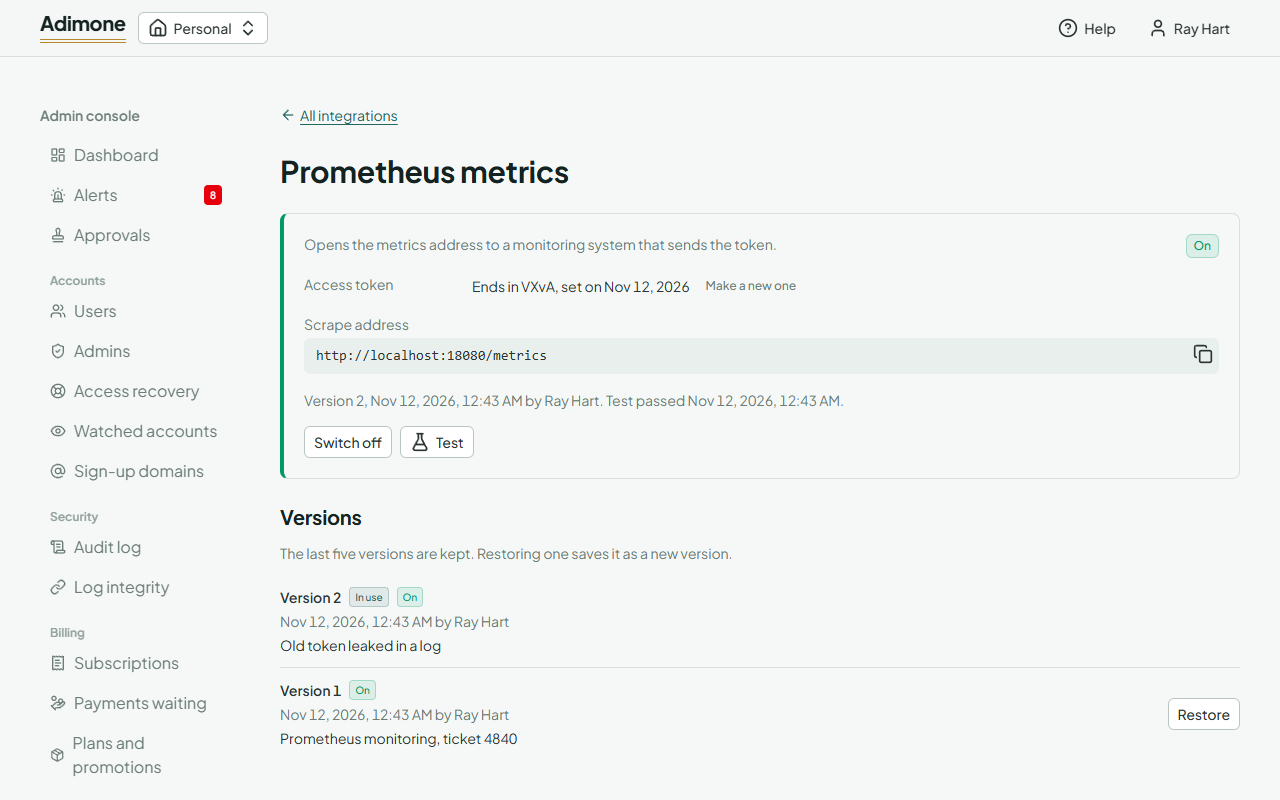
To replace one, for example after it leaked, choose Make a new one next to it. The old one stops working at once.
History and restoring a version
Choose History to see the last five versions: who saved each one, when, why, and whether it was on. Restore brings an earlier version back, secrets included, as a new version, which helps when a change broke something.
Notes on each integration
Email (SMTP): port 465 uses TLS from the start; any other port must offer STARTTLS. Point your mail provider's bounce and complaint reports at the Bounce report address shown on the card, so addresses that bounce stop getting mail.
Google sign-in: create an OAuth client of type Web application in the Google Cloud console and add the card's Authorized redirect URI to it.
Google Drive: lets business owners send their scheduled exports to their own Drive. Use an OAuth client of type Web application from the Google Cloud console (the sign-in one will do), enable the Google Drive API, and add the card's Authorized redirect URI to the client. Adimone asks only for access to the files it makes.
Payment gateways: paste the card's Webhook address into the gateway's dashboard (for Xendit, the invoice-paid and refund callbacks). Bank transfer needs only the instructions payers see; a billing admin records each payment.
Exchange rates: the daily rates businesses convert with when they turn on automatic rates. The European Central Bank is free, needs no account and covers about 30 currencies, the rupiah among them; Open Exchange Rates covers about 170 and needs an app ID. The server fetches the rates every few hours (the last 90 days the first time, from the ECB) and keeps them. A business's own rate for a day always wins, and a feed rate older than a week is not used.
Prometheus metrics: switch it on, copy the token, and configure your scraper to send it as a bearer token to the Scrape address.
IP location (MaxMind GeoLite2): a free MaxMind account is enough. The server downloads the databases weekly; security timelines then show the city and network of each sign-in, and the new-country and impossible-travel rules start working.
Security alert webhook: see Send security alerts to Slack, Teams or a SIEM.