Open the admin console
Become an administrator of your Adimone server, sign in with a passkey and give other people admin roles.
The admin console is for the people who run a Adimone server: they help users, watch security and keep the server healthy. It never shows a business's books.
Become the first administrator
- Sign up for an ordinary account and add two passkeys to it. Every administrator needs a password and two passkeys, so losing one device never locks them out.
- On the server, run
genesis admin create --email you@example.com --role superadmin --reason "first admin". The account is signed out everywhere. - Sign in again with your password and a passkey, open the account menu and choose Admin console.
The console asks you to Confirm with a passkey when you open it without one, and asks again before sensitive actions (locking an account, giving a role, switching the server's mode) if you haven't confirmed in the last few minutes.
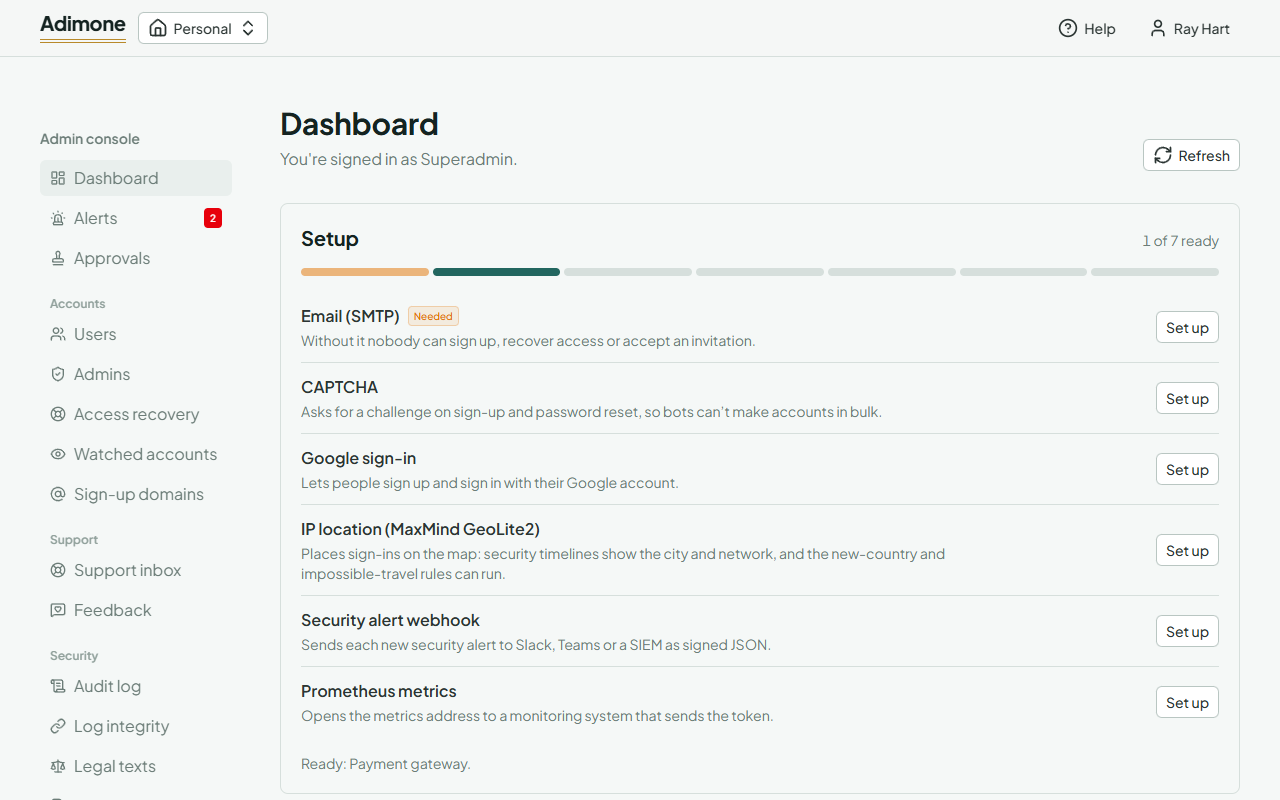
The Dashboard shows the server that answered: its version, how long it has been running, memory and database connections, and how many users, workspaces, jobs and subscriptions there are.
Nodes lists every server (node) running on the same database, with its version, when it started and its last beat; nodes beat every 15 seconds, and one that stops beating for a minute drops off the list. One node at a time runs the Scheduled jobs for all of them; if it stops, another takes over within a minute. Below the list, Sign-in and sign-up limits says whether the limits on sign-in attempts, sign-ups and recovery are shared by every node (through the database or Redis) or counted by each node on its own. During an upgrade both versions show for a moment.
Traffic adds up every node's requests, errors and response times over the last 1, 5 and 15 minutes; other nodes' figures are as of their last beat.
Superadmins also see Setup on the dashboard while an integration is missing: email, which everyone needs to sign up, a payment gateway, and the optional ones. See Set up integrations, and for the rest of the server's upkeep, Change product settings and Data retention and background jobs.
Billing admins sell and support subscriptions: see Change plans, add-ons and promotions, Help a business with its subscription and Invoices, refunds and held payments.
Admin roles
- Superadmin: everything, including admins, the server's mode and deleting accounts.
- Security admin: locking, banning and securing accounts, sign-up domains, the audit log and alerts.
- Operator: the server's health, background jobs and maintenance.
- Billing admin: plans, subscriptions and invoices, and what Support can do.
- Support: looking up accounts and resending sign-up links.
- Auditor: reading the audit log and the server's figures.
Nobody can act on an administrator of the same or a higher role.
Give someone an admin role
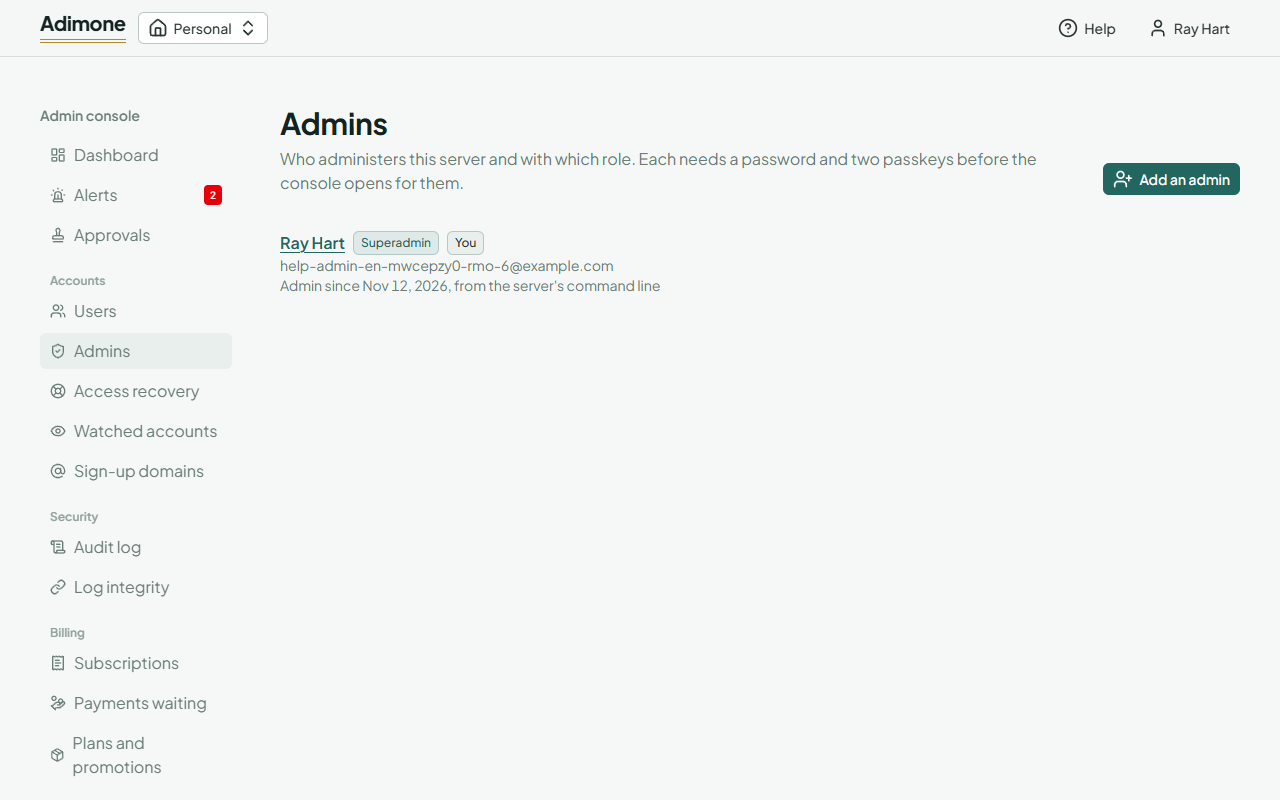
Superadmins go to Admins and choose Add an admin: enter the person's email address, pick the role and write the reason, which is kept in the audit log. The account must already have a password and two passkeys. To change a role, choose Change role; to take it away, Remove role. The person is signed out everywhere and every superadmin gets an email.