
Read an account's security timeline
See what an account did and what was done to it, where from and in which sessions, and make a breach report.
When an account may have been misused, its security timeline puts everything in one place. Open the account under Users and choose Security timeline (security admins and auditors).
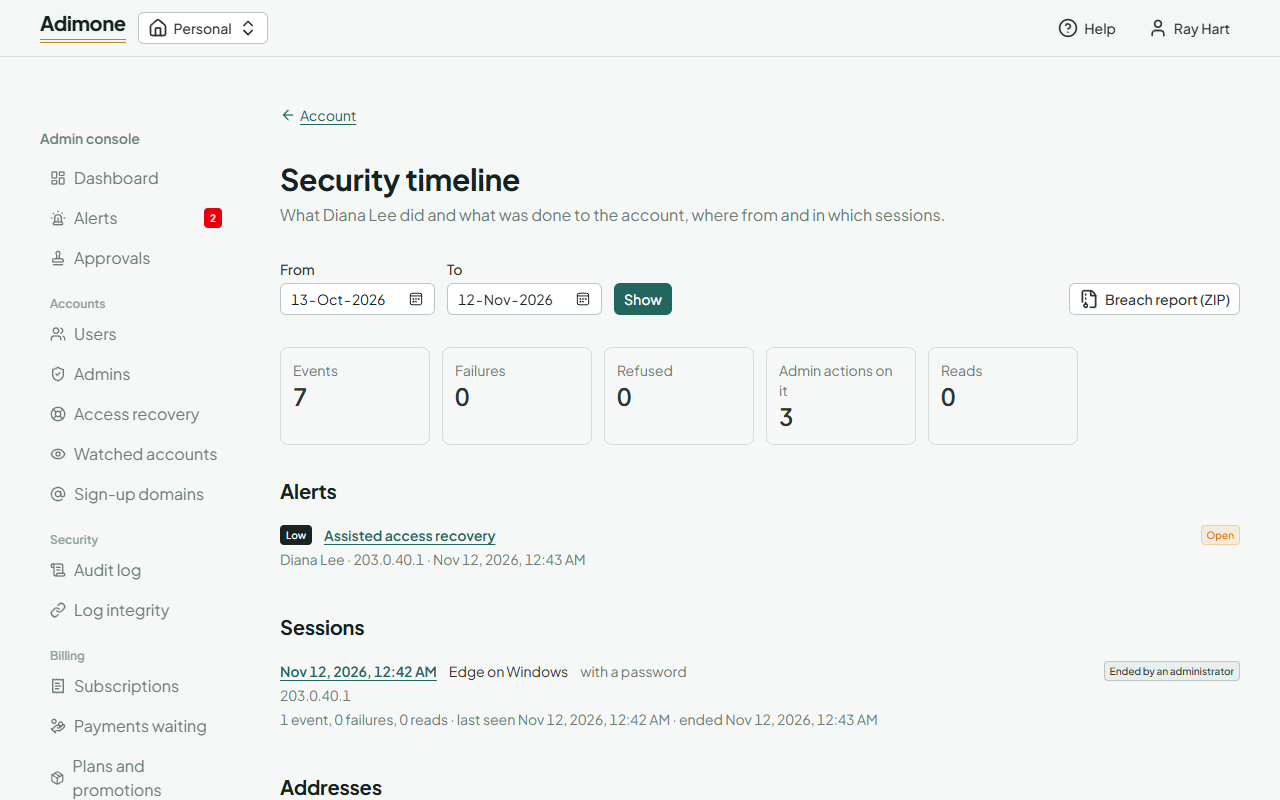
Pick the days with From and To and choose Show; the timeline covers the last 30 days unless you choose otherwise, and at most a year. It shows:
- the totals: events, failures, refused requests, actions of administrators on the account and reads;
- the account's Alerts in those days;
- its Sessions: when and how each started, on which browser and from where, how it ended (signed out, expired, ended by a password change or an administrator) and what happened in it;
- the Addresses it used or that tried to sign in to it, with their place when the server has an address database;
- the Businesses it worked in, by id (you see that it worked there, not what it did with the books);
- its Reads per day, with the busiest hour: a sudden jump can mean someone is collecting data;
- the events themselves.
When the window holds too many events, the timeline says so; narrow the days to see everything.
Follow a session or an address
Choose a session to see its addresses, businesses and reads, and Its events to list them in the audit log. Choose an address to see every account that used it, or was the target of its failed sign-ins, in the same days. An address that many accounts share, or that only fails, is worth a closer look.
Make a breach report
Breach report (ZIP) downloads the timeline's days as files you can hand to a data protection officer or keep with an incident: the events, sessions, addresses, businesses and reads as CSV files, and a manifest with each file's checksum and the state of the audit log at the time, so the report can be shown to be complete and unchanged. It asks you to confirm with a passkey, and making it is logged.