
Review an access recovery request
Check that a person who lost their password and second step really owns the account, then approve or reject their request.
People who lost both their password and their second step ask for their account back. Security admins review these requests under Access recovery in the admin console.
Each request waits first: 3 days, or 7 if the account owns a business or holds an admin role. The account's own address is told at once, so a real owner can cancel a request that wasn't theirs. Requests that are Ready to review come first in the list.
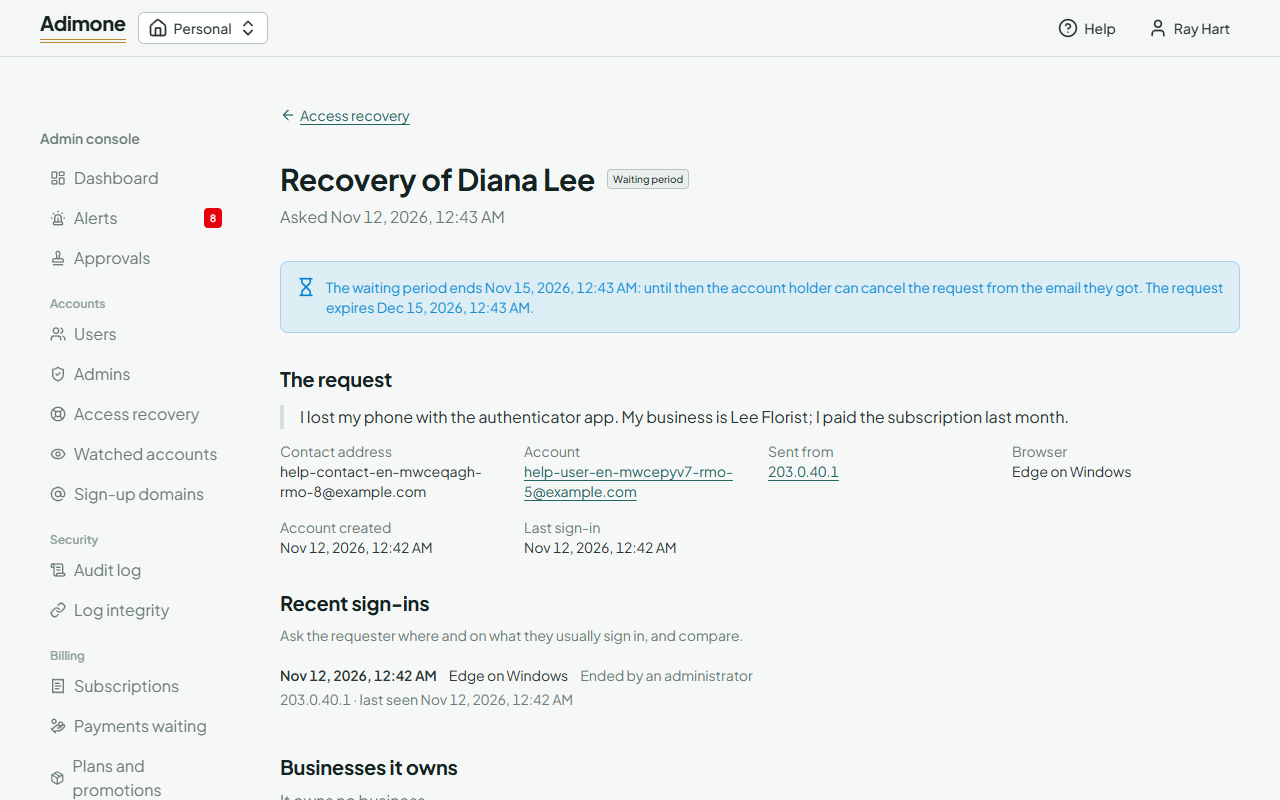
Check the request
Open a request. It shows what the person wrote, where they can be reached and where they sent the request from, next to what the account's record says: when it was created and last used, its Recent sign-ins (when, on which browser, from where) and the Businesses it owns with their last subscription payment and their last sales invoices (the numbers they run from and to, their dates, and about how much the newest was).
Write to the contact address and ask questions only the owner can answer: where and on what they usually sign in, which businesses they own or work in, the amount of their last payment, the number or rough amount of their latest sales invoice, or a co-member who can vouch for them. Never ask for their old password.
Decide
Tick what you confirmed in the Checklist (at least one), choose whether to Also remove their second step, and, when the person can't open the account's address anymore, Send the link to their contact address, which becomes the account's address once they use it. Then choose Approve and write your reason. The password goes, every session ends and the person gets a link to choose a new password.
Choose Reject when you aren't sure; the person and the account's address are told.