
Order from vendors
Write a purchase order priced from the vendor's prices, have it approved, issue it to the vendor, and copy, cancel or close it.
A purchase order tells a vendor what you buy from them and at what price. It is approved before it goes out, so the business commits to paying only when someone allowed to decides so.
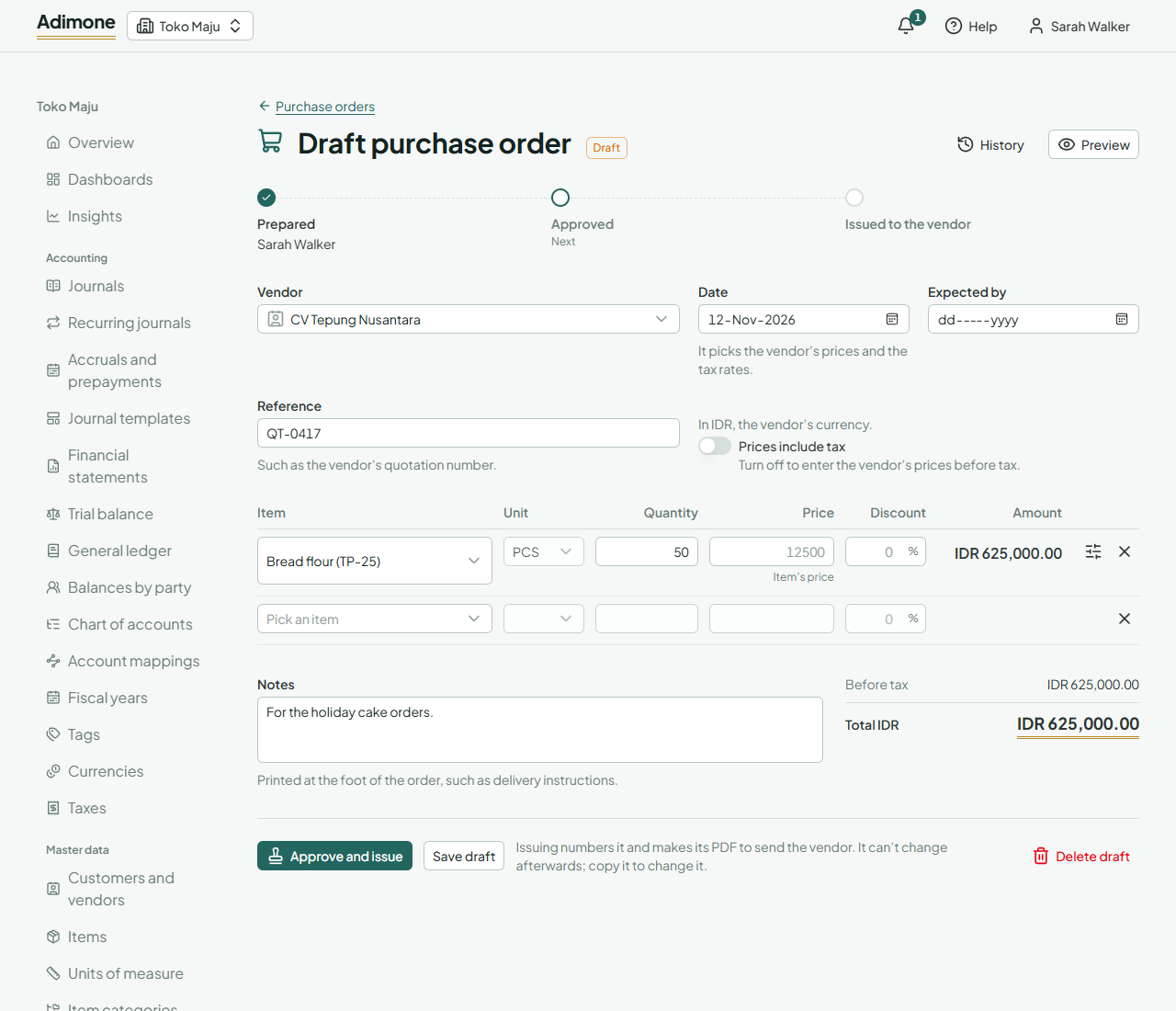
Write an order
- In Purchasing, open Purchase orders and choose New purchase order. Ordering a requisition opens its order for you instead.
- Pick the Vendor. The order is in the vendor's currency and takes their payment term.
- Check the Date, which picks the vendor's prices and the tax rates, and the Expected by day.
- Enter the Reference, such as the vendor's quotation number.
- Add the items, units and quantities. Each line's price comes from the vendor's purchase price list, else the item's purchase price; the line says which. Type another price or a discount when the vendor charges something else. Taxes are the vendor's usual purchase taxes, else the item's; change them in the line's settings.
- Choose Save draft. The totals and taxes are worked out on saving.
Prices and totals of purchase orders show only to people who see purchase prices.
Approve and issue
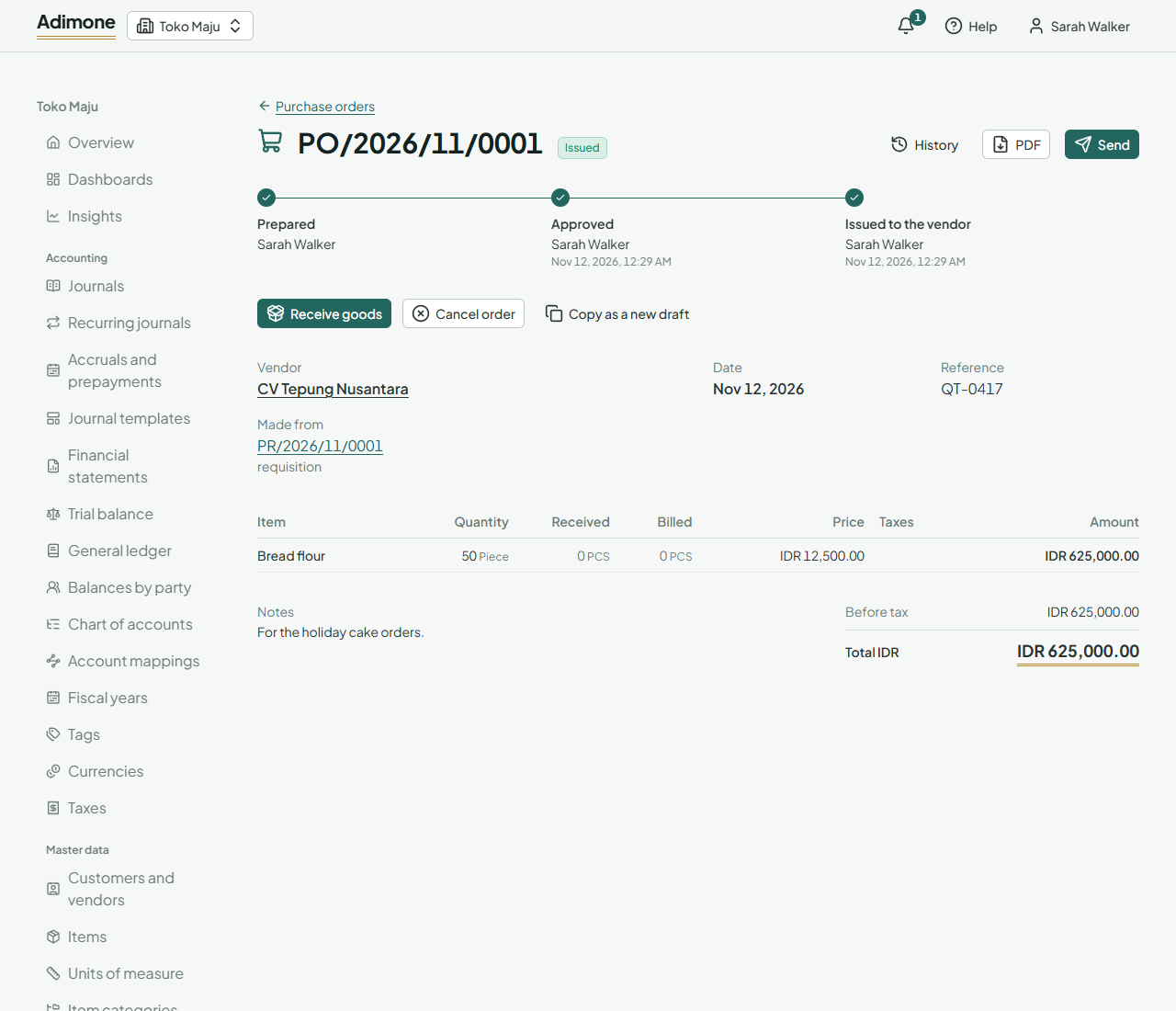
The steps at the top of an order show who prepared it, who approved it and who issued it.
- If your role approves orders, Approve and issue does both at once: the order gets its number and its PDF to send the vendor, and can't change afterwards.
- If it doesn't, save the draft and let an approver know. They open it and choose Approve order (or Approve and issue). Purchasing then chooses Issue order.
- Send emails the issued order to the vendor or makes a link to it (Send documents).
By default the owner and administrators approve orders. Under Checks and balances you can make sure whoever prepared an order doesn't approve it too.
To change an approved order before it's issued, choose Change order. Saving a change takes it back to a draft, which needs approving again.
Copy, cancel or close
- Copy as a new draft starts a new order from it, for goods you buy again. Prices you typed and discounts stay; the rest follow the vendor's current prices.
- Cancel order marks an approved or issued order cancelled, with the reason. Tell the vendor the goods aren't coming. Once goods were received against it, it can't be cancelled.
- Close what is left stops a partly received order from taking more goods, when the rest won't come.
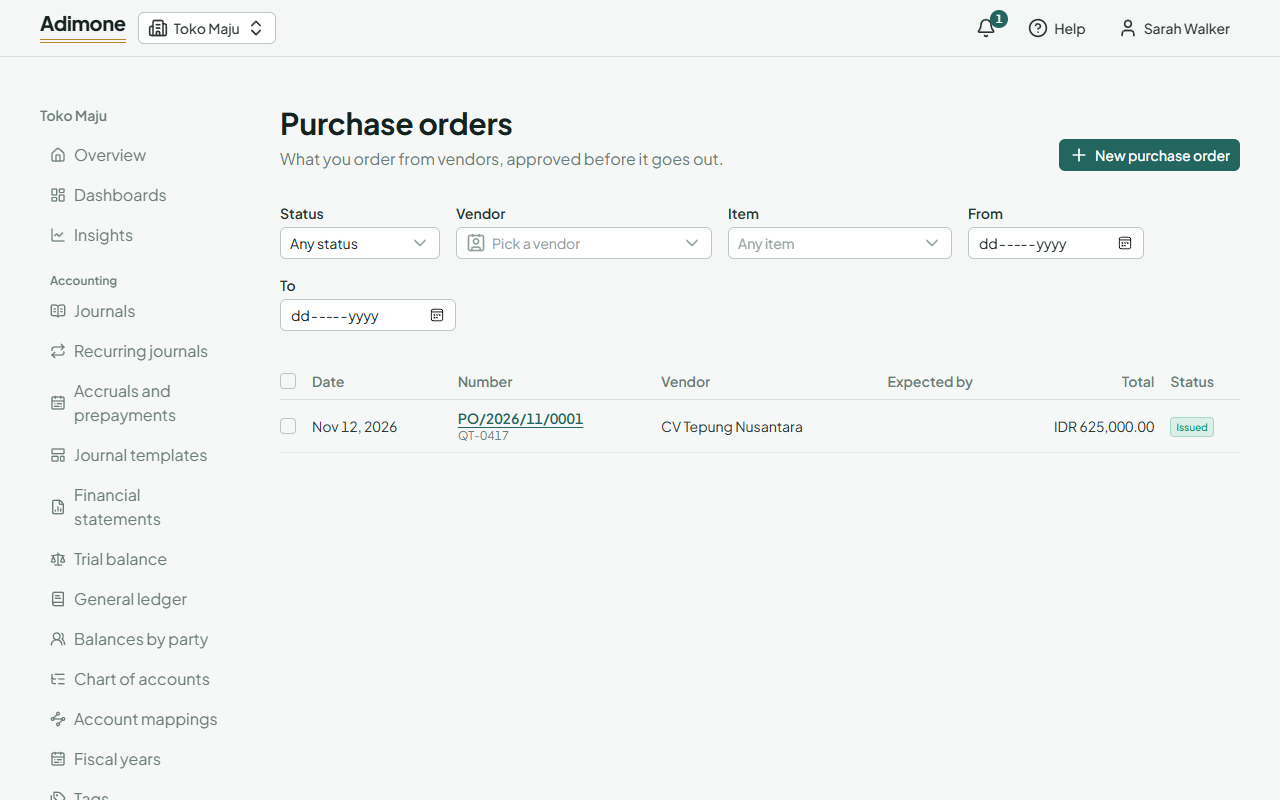
When the goods arrive, choose Receive goods on the issued order (Receive goods from vendors). An issued order shows how much of each line was received and billed as goods receipts and vendor bills come in.