
Deliver goods to customers
Deliver a confirmed order in full or in part, choose the warehouse and lots, post the delivery note, void a delivery, and close what is left of an order.
A delivery records goods leaving for a customer. Posting it takes the stock out of the warehouse, records what the goods cost, counts them on the order and issues the delivery note the driver takes along.
Deliver an order
- Open a confirmed sales order and choose Deliver. A draft delivery opens with everything still left to deliver of the order's stock items.
- Each line shows what was ordered and what is left. Lower a quantity to deliver part of a line now and the rest later; remove a line that isn't going on this trip. Add a line of the order puts back a line you removed.
- Add other items the customer takes along on empty lines: they are delivered without being on the order.
- Check the Delivery date: the goods leave stock on that day.
- Choose Save draft to finish later, or Post delivery.
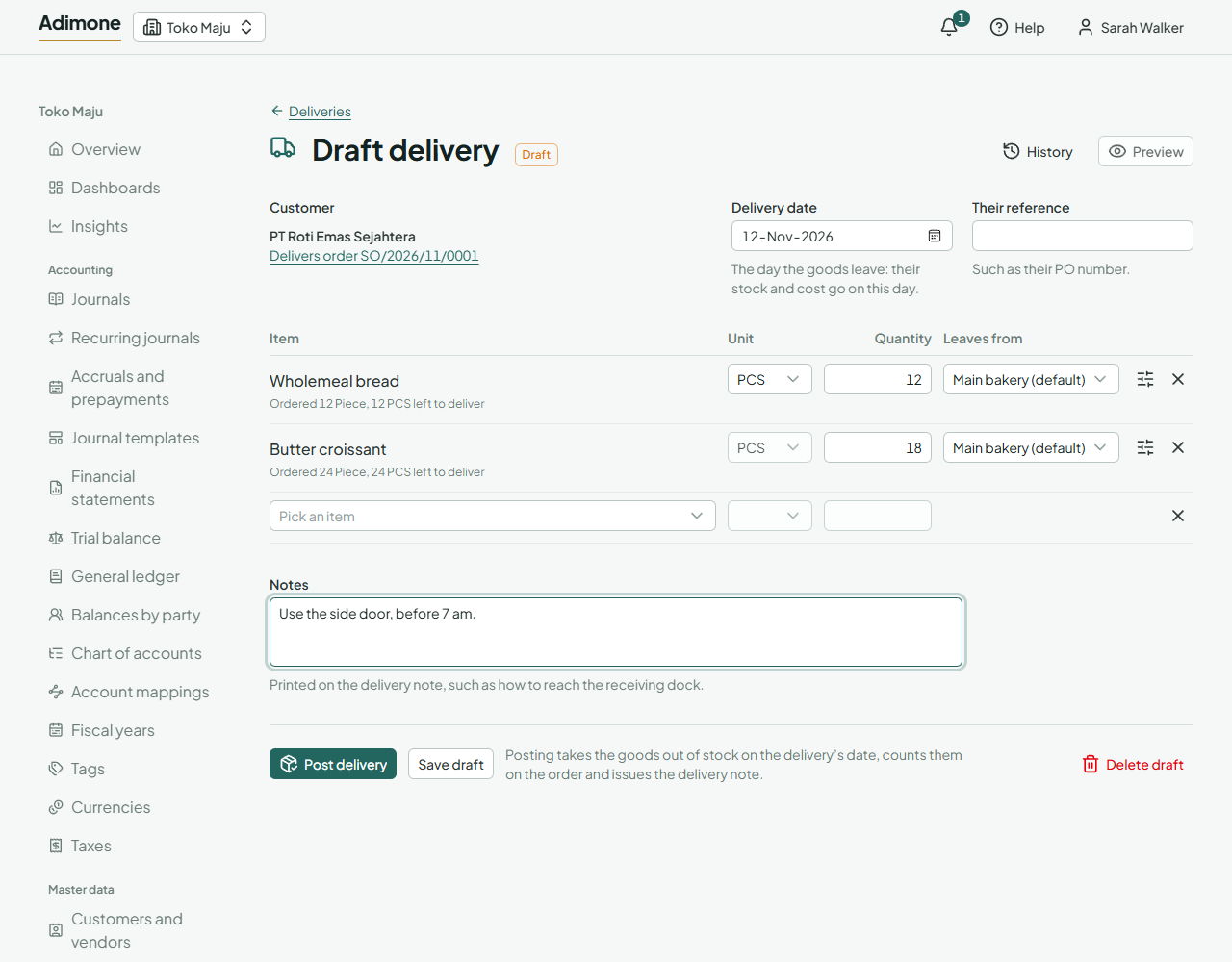
Where the goods leave from
When the business has more than one warehouse, each line has Leaves from: the default warehouse unless you pick another. Services and items not kept in stock leave from none.
Items tracked by lot or serial number need the lot or serial each line takes. Choose Fill from the earliest expiry to see which lots the quantity comes from: the line becomes one line per lot, which you can change. A line you leave without a number takes the earliest expiry first when the delivery is saved.
Post the delivery
Post delivery takes the goods out of stock on the delivery's date and posts what they cost to cost of goods sold. The delivery gets its number and its delivery note, and can't change afterwards.
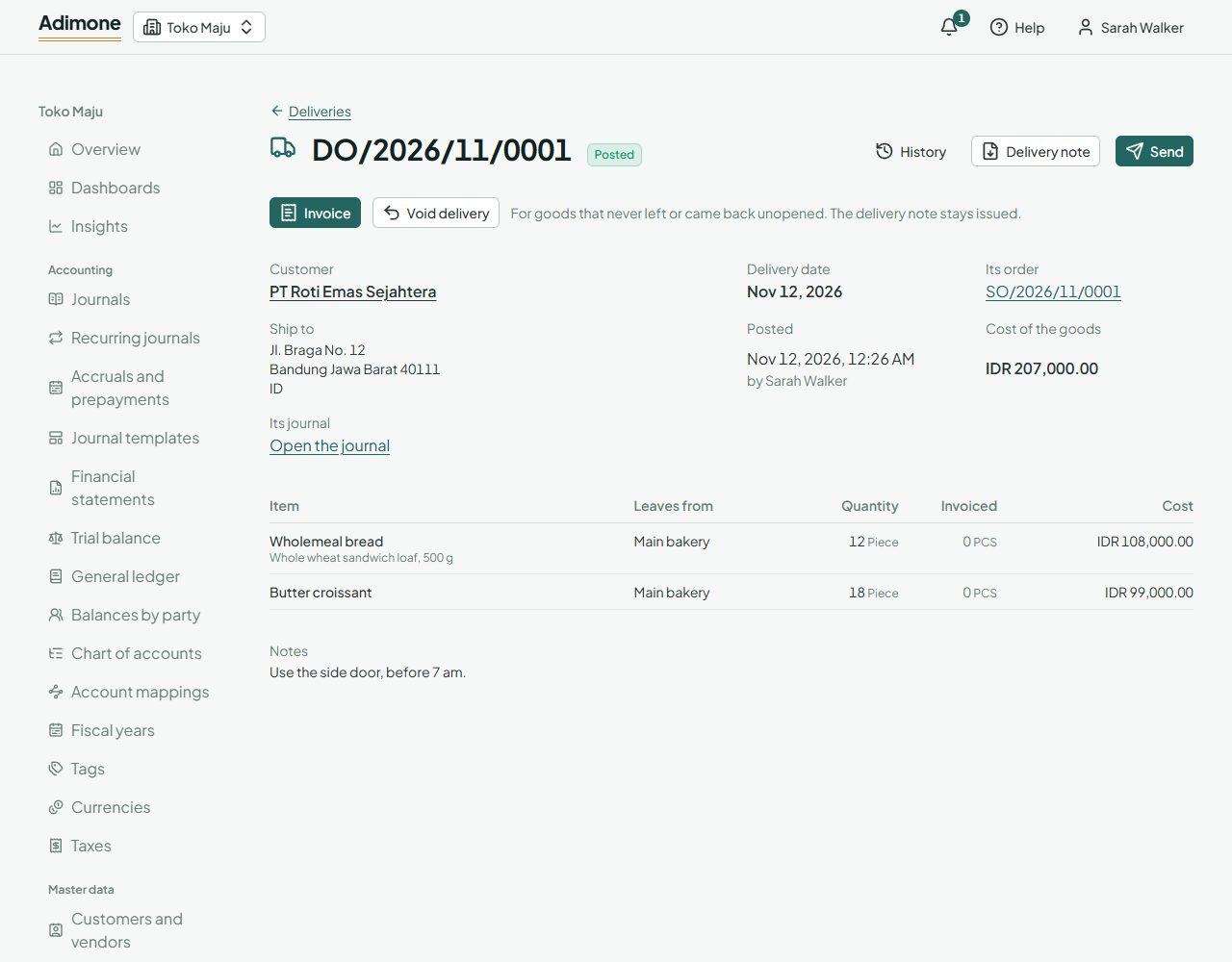
- Delivery note opens the note to print or download; Send emails it or makes a link to it (Send documents to customers).
- Those who see item costs see what the goods cost, and a link to the delivery's journal.
- The goods appear in each item's moves, linked back to the delivery.
- Invoice bills the delivery's lines at the order's prices (Invoice customers).
Deliver without an order
In Sales, open Deliveries and choose New delivery. Pick the customer, add the items and post it as above.
Follow an order's deliveries
An order shows how much of each line was delivered, in the item's base unit, and whether it is partly or fully delivered. See its deliveries lists them.
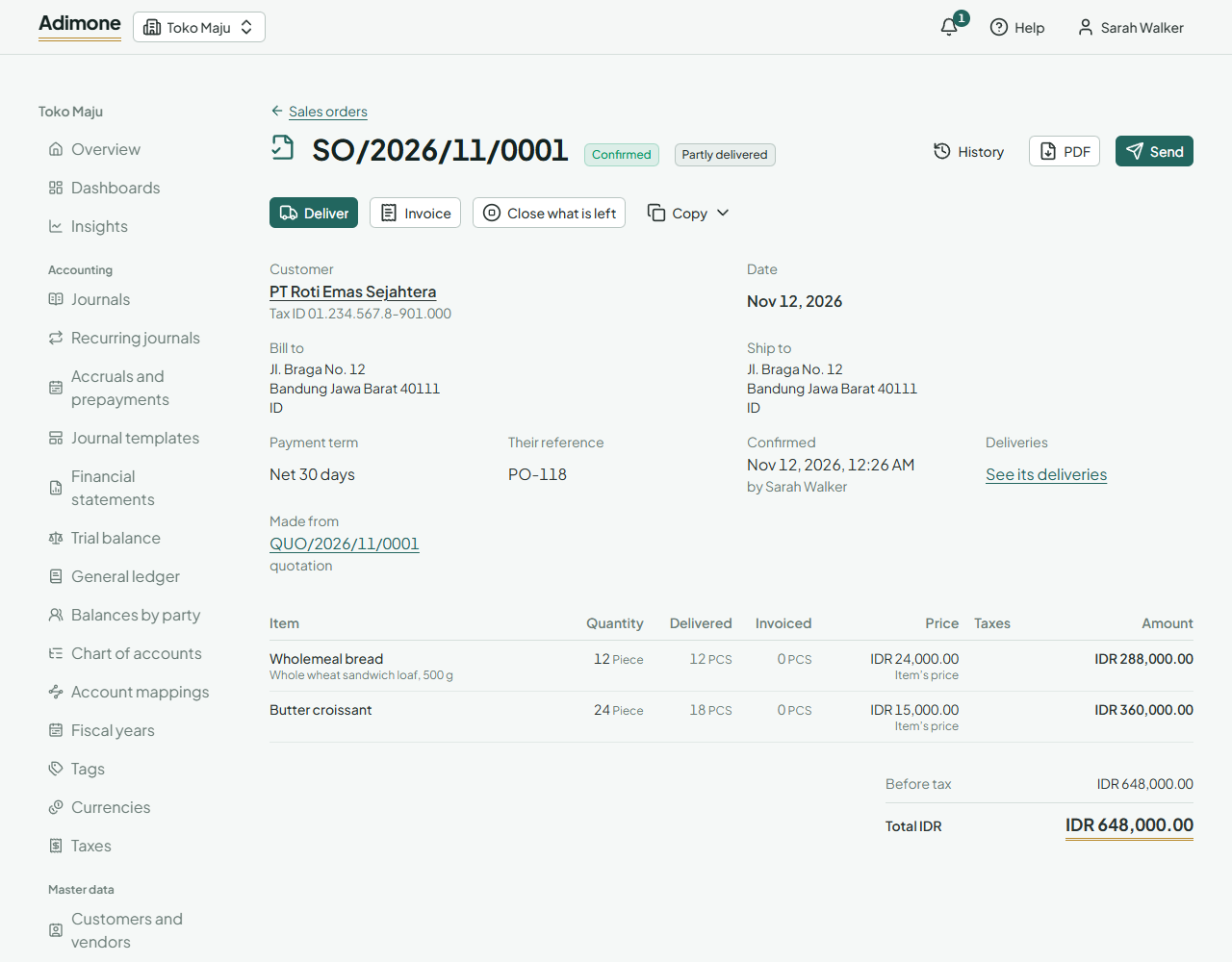
When the rest of a partly delivered order won't be sent, choose Close what is left and give the reason. The order takes no more deliveries, and what wasn't delivered stops counting against the customer's credit limit. An order that was partly delivered can't be cancelled; close what is left instead.
Void a delivery
For goods that never left, or came back unopened, open the posted delivery and choose Void delivery. Pick the day the stock comes back (the delivery's own day or later) and give the reason. The goods return to stock at what they cost, the cost of goods sold is taken back, and the order counts them as not delivered again. The delivery note stays issued, marked by the delivery's voided status. The owner's review list shows every void. A delivery an invoice bills can't be voided: void the invoice first.