
Bank, cash and card accounts
Set up the bank accounts, cash and company cards the business keeps its money in, see what each holds, and move money between them.
Bank and cash lists the places the business keeps its money: bank accounts, cash (a cash box, petty cash, a till's float) and company credit cards. Each one is kept in its own account in the chart of accounts, so everything that moves money (receipts, payments to vendors, POS deposits, transfers) moves it, and what it holds always comes straight from the books.
Add an account
- Open Bank and cash under Banking and choose Add an account.
- Pick the kind: Bank account, Cash or Company card.
- Give it a Name people here recognize, such as "BCA operations" or "Petty cash".
- Pick its Currency when the business uses more than one. Empty means the base currency. It can't change later.
- For a bank account or card, add the Bank and the Account number (or card number). The number is kept sealed: the list shows only its last four characters.
- Under In the chart of accounts, keep Make a new chart account: Adimone suggests the next free code after the chart's accounts of that kind, and places it under its heading when the chart has only one (assets for bank and cash, liabilities for a card). Choose Use an existing one instead when the chart already has an account for it that no other account uses.
- Choose Add account.
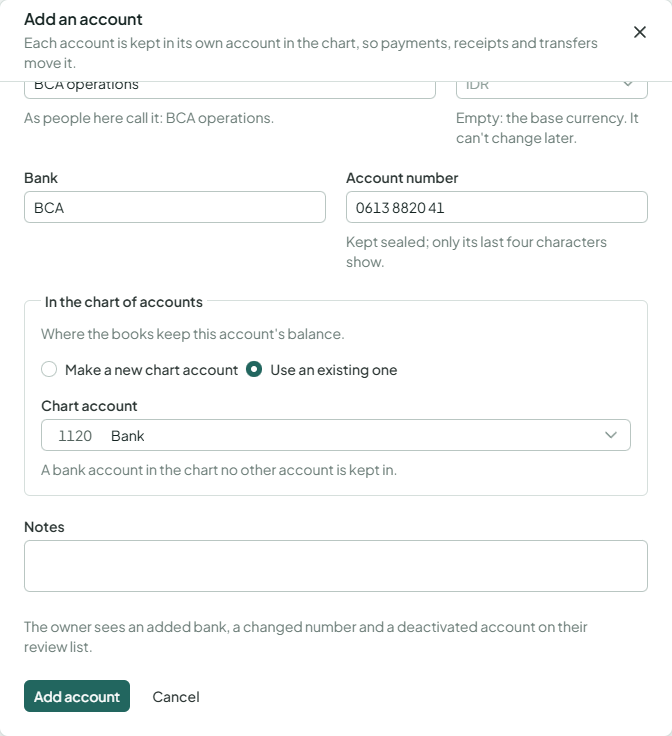
Adding or changing bank accounts needs its own permission, usually held by the owner and the accountant. The owner sees an added bank, a changed number and a deactivated account on the review list.
What each account holds
Each account shows its balance in its own currency; one in another currency also shows its value in the base currency. A company card shows what is owed on it: spending on the card raises it, paying the card off lowers it.
Above the accounts, Held in bank and cash adds up the bank and cash accounts, and Owed on company cards adds up the cards, both in the base currency as the books carry them.
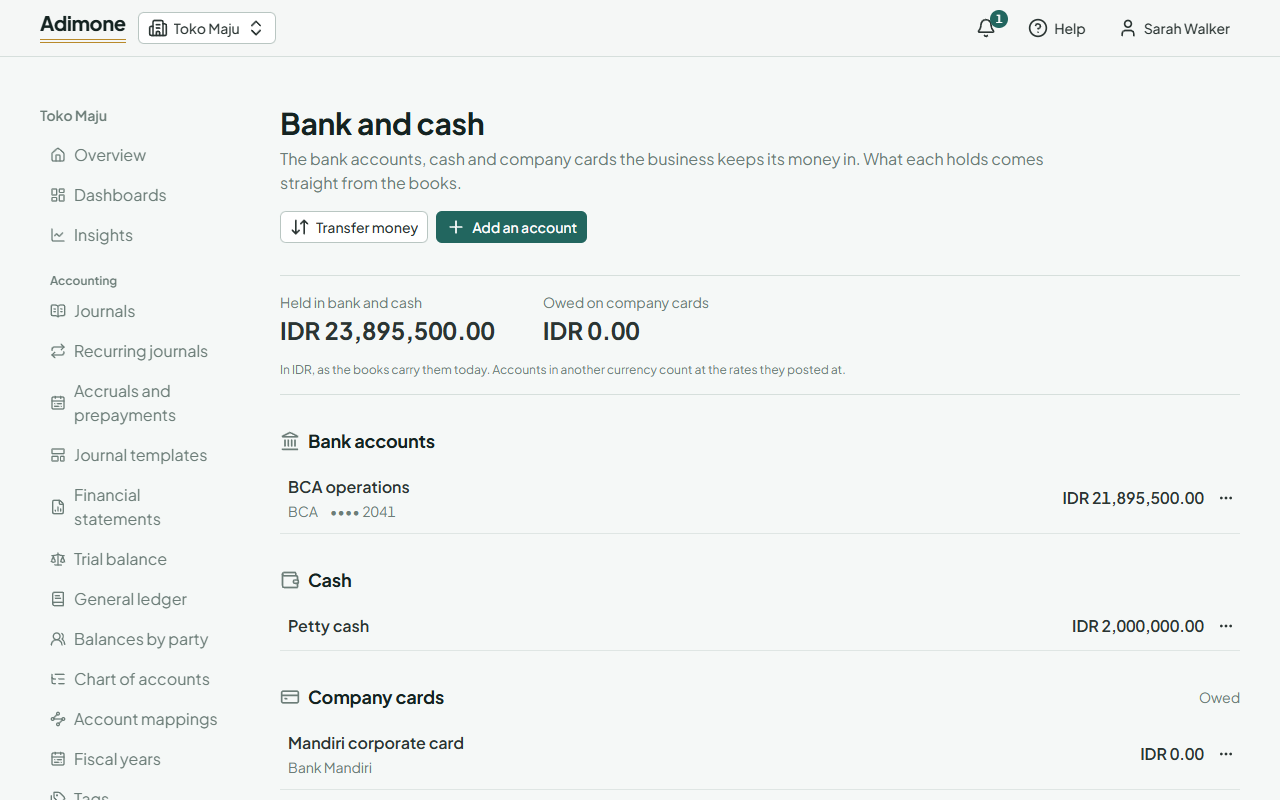
Balances show only to members who may see cash balances (the owner and the accountant, unless the owner changed their roles). Others see the accounts without what they hold.
To see the whole account number, choose Show the whole number from the account's menu. It needs permission to see bank details, and each look is recorded in the audit log.
From an account's menu you can also Transfer from here, See its transfers and See its activity in the books (the account's general ledger).
Move money between accounts
A transfer moves money between two of the business's own accounts: banking the till's cash, paying off the company card, topping up savings.
- Choose Transfer money on Bank and cash or Transfers.
- Pick From and To, the Amount that left, and the Date.
- When the bank charged for it, choose Add a bank charge and enter it. It comes out of the paying account as well and goes to the account for bank charges in Account mappings, unless you pick another expense account in Charge to.
- Add the bank's Reference, so the statement matches it later, and a Memo if useful.
- Choose Transfer.
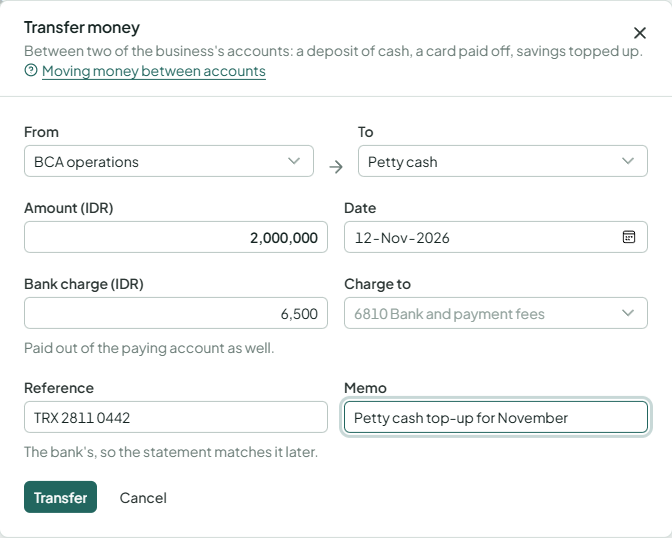
A transfer posts at once: the receiving account goes up and the paying one down. Transfers under Banking lists them newest first; filter by account, status and dates, and open one to see its journal.
Between currencies
When the two accounts have different currencies, one of them must be in the base currency (to move between two foreign currencies, go through a base-currency account). Enter what left and what Arrived, as the bank shows them; the rate it took shows below. The foreign side posts at the day's exchange rate, and what the amounts differ from that rate by posts as an exchange gain or loss.
Void a transfer
When a transfer was recorded by mistake, open it and choose Void. Pick the day (its own or later) and give the reason, which the owner sees on the review list. Its journal is reversed and both balances go back. Voiding needs its own permission, usually only the owner's and administrators'.
Change, deactivate or remove an account
Choose an account to change its name, bank, number or notes. Leave the number empty to keep it, or tick Remove the number. The kind, the chart account and the currency stay as the account was made.
Deactivate an account the business no longer uses: it takes no new transfers, and its balance stays in the books. Remove works only for an account no transfer names; its chart account and balance stay in the books either way.
Payments to vendors and money vendors pay back may also go through a company card: pick it in Paid from or Paid into (see payments to vendors).