
Expense claims
Claim what you spent for the business, with the receipts, and have it approved, posted and paid back.
An expense claim records what a member spent for the business: a taxi to a client, a lunch with a supplier, printer ink bought on the way in. Each line is one receipt, with its photo or PDF attached. The claimant submits it, the accounts post it into the books, and when the claimant paid out of their own pocket, the business pays them back.
Make a claim
- Open Expense claims under Expenses and choose New expense claim.
- Write What it was for, such as "Client visit to Bandung". One claim can hold a whole trip or a month of small spending.
- Choose what it was Paid with (see below).
- Add a line for each receipt: the Day, Where (the shop or restaurant), What it was, the account it is Charged to, the Tax on the receipt if it shows tax you can claim back, and the Amount the receipt says, tax included.
- Choose Add a photo or PDF beside the line to attach the receipt. A photo from your phone is fine.
- Choose Submit, or Save draft to finish it later.
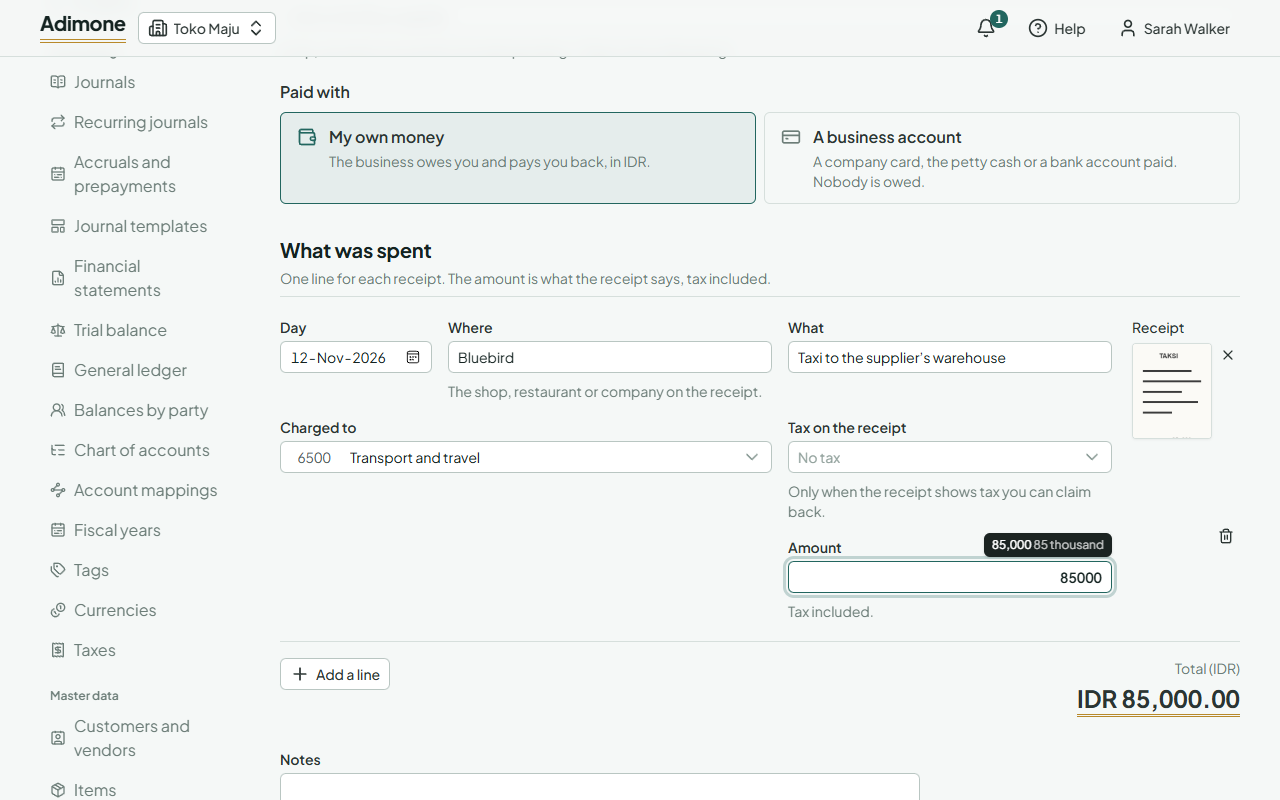
After a claim from a shop or restaurant has been posted once, Adimone remembers where its lines went. The next time you type the same place, it offers that account (and tax) under Charged to: choose Use it to take it.
Until you submit, only you can change the draft. You can also remove a draft you no longer need.
Paid yourself or with a business account
- My own money: you paid and the business owes you. The claim is in the business's base currency, and after it is posted the accounts pay you back.
- A business account: a company card, the petty cash or a bank account paid. Pick Which account paid. Nobody is owed, so there is nothing to pay back. An account kept in a foreign currency pays only in its own currency.
When a claim needs approval
The owner can ask for expense claims from a certain amount to be approved first, on Checks and balances. When yours is held, Submit saves it and offers Send for approval instead: add a note for the approver and send it. The claim waits as Waiting for approval and is submitted once it is approved. If it is turned down or you withdraw the request, it goes back to being your draft.
Post, return and pay back
Submitted claims wait for the accounts. Open Expense claims, switch to Everyone's and pick Submitted as the status.
- Post puts the claim into the books on the day you pick: each line to its account and its tax to the tax account, and the total either owed to the claimant or taken out of the account that paid.
- Return sends it back to the claimant as a draft, with a note saying what needs changing. They see the note when they open it.
- Pay back records that a claim paid out of the claimant's own pocket was paid to them, from a cash or bank account, on or after the day it was posted.
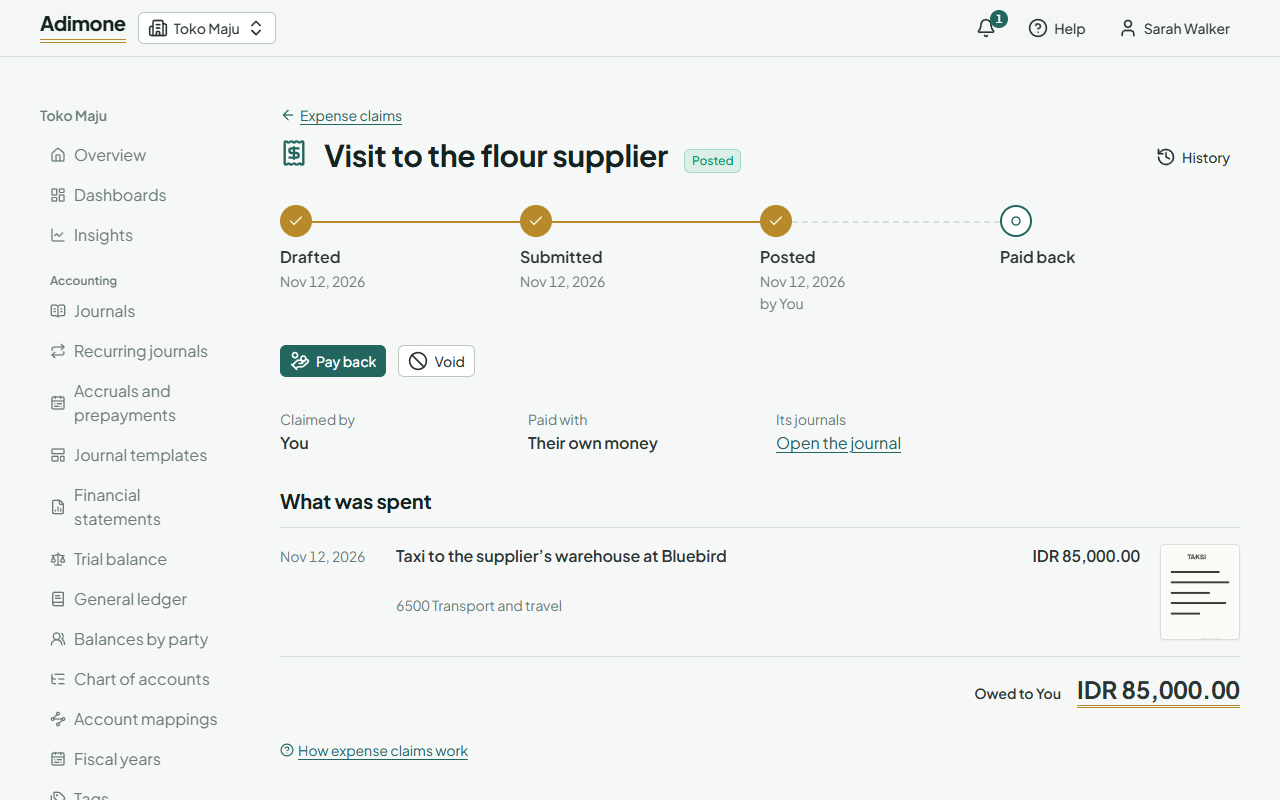
The line at the top of the claim shows where it stands: drafted, submitted, posted and paid back, with who did each step and when.
When the owner has turned on maker-checker for claims, the person who made a claim doesn't post it or pay themselves back: someone else does.
Void a claim or a payback
- Void the payback reverses a payback that never reached the claimant, such as a transfer that bounced. The claim is owed again.
- Void reverses a posted claim that was wrong. Void its payback first if it was paid back. A voided claim stays on the list, marked voided.
Both ask for a reason, which the owner sees on their review list.