
Set up warehouses
The places you keep stock, the default one stock documents start from, and how many your plan allows.
A warehouse is any place you keep stock: the shop floor, a storeroom, a branch or a kiosk. Every quantity on hand belongs to one, and stock moves between them with a transfer.
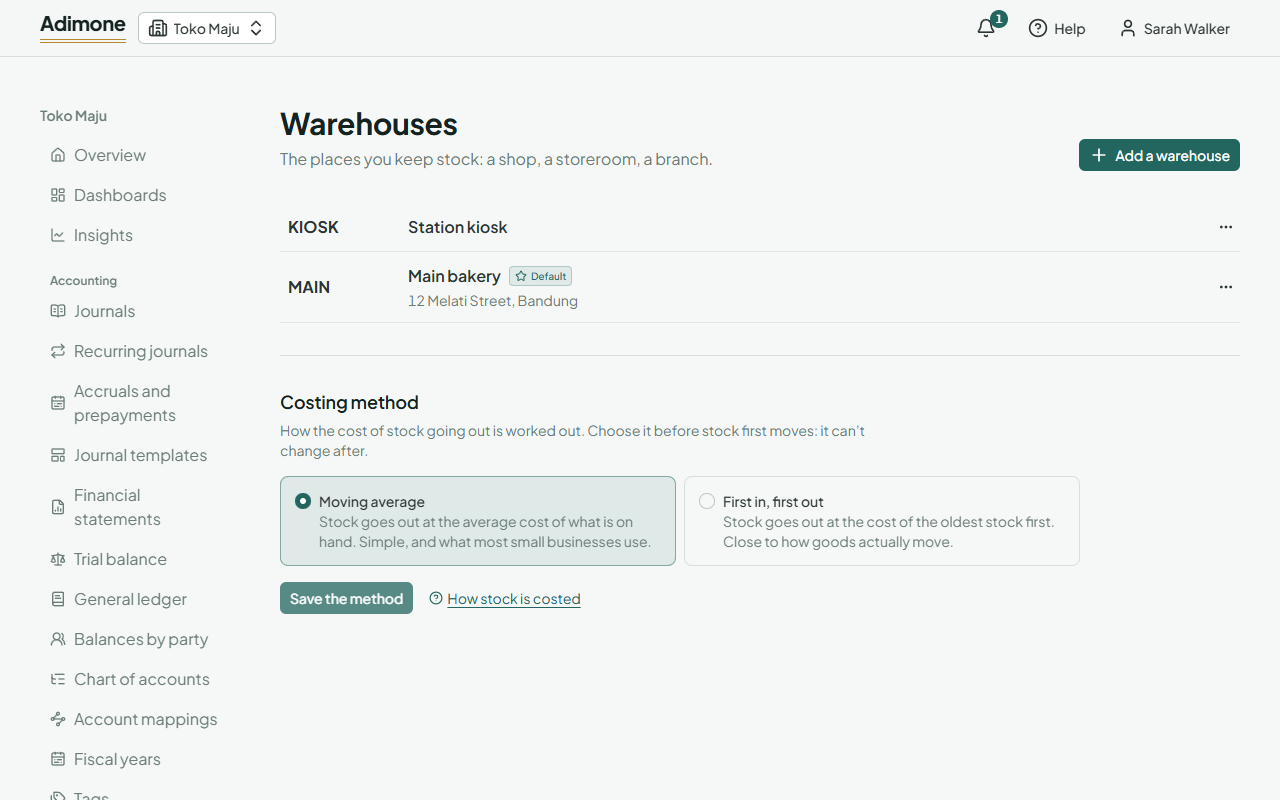
Add a warehouse
- In Inventory, open Warehouses and choose Add a warehouse.
- Enter a short Code, like MAIN or JKT, and a Name. Codes are unique, ignoring capitals.
- Add the Address if you like; it may span lines.
- Choose Add the warehouse.
Adding and changing warehouses takes the permission to manage them, which the Owner, Administrators and the Inventory role hold (What each role sees).
The default warehouse
Your first warehouse is the default: new stock documents start from it, and sales and purchases will later use it unless a line names another. To change it, open another warehouse's menu and choose Make default. The default can't be deactivated or deleted while you have other warehouses.
Deactivate or delete
- Deactivate a warehouse you no longer use. It keeps its stock and its history, but takes no new stock documents. Reactivate brings it back.
- Delete works only for a warehouse no stock and no stock document has named, such as one added by mistake.
Each warehouse's menu also opens its stock and its change history.
How many warehouses your plan allows
Starter keeps stock in one active warehouse; Growth has no limit. The page shows how many are active against your plan. After moving to a smaller plan, extra warehouses stay with their stock, but stock doesn't move until you deactivate the extra ones or change plan back. Voiding a stock document still works. A business has at most 100 warehouses in all.
Choose how stock is costed
Below the warehouses, Costing method sets how the cost of stock going out is worked out. Choose it before stock first moves: How stock is costed.