
Your personal finances
Keep your own money in your personal workspace: accounts, what you spend and earn, transfers, recurring transactions, categories, budgets, savings goals, paying off debts, net worth, spending, coming bills and the businesses you own.
Your personal workspace keeps your own money, apart from any business. It's free and only you see it. You record what you spend and earn, and Adimone keeps the books behind it, so balances, totals and reports always add up.
Get started
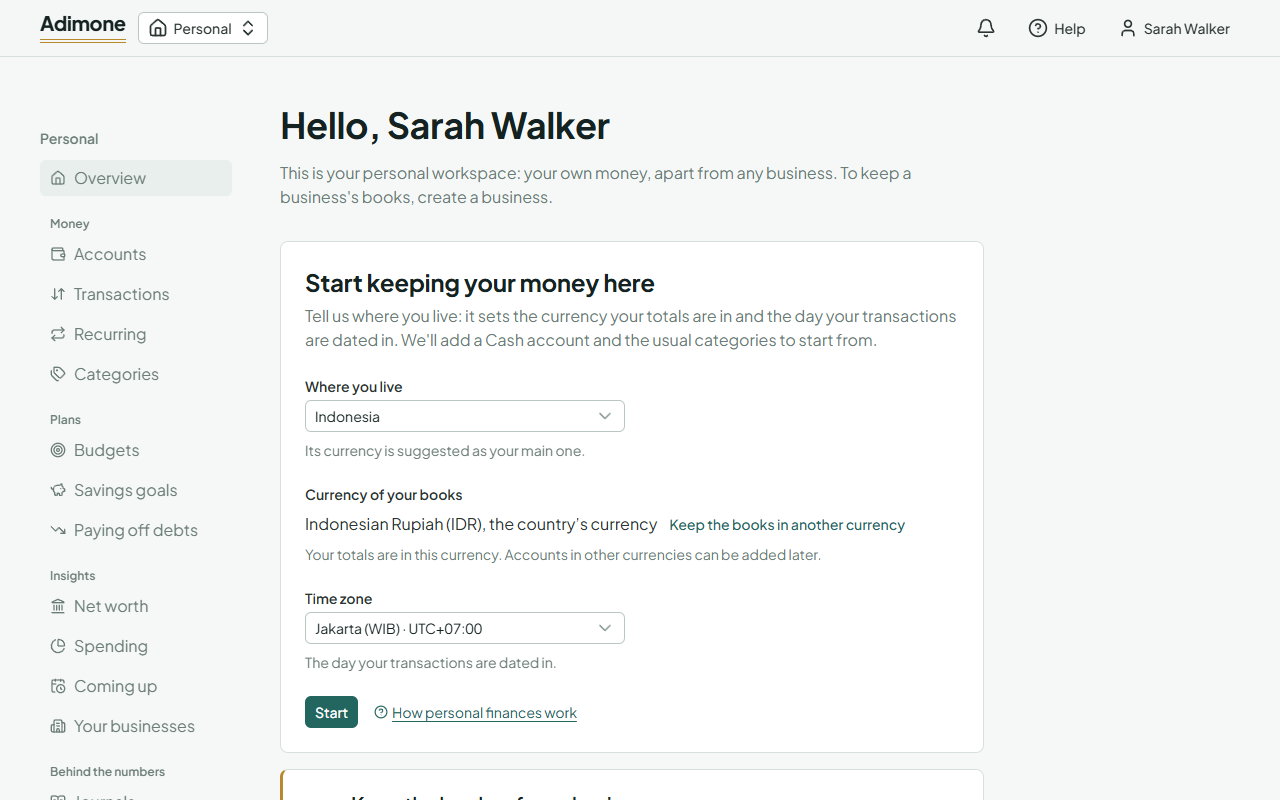
The first time, your personal workspace asks where you live.
- Pick Where you live. Its currency becomes your main one: your totals are in it. To use another, choose Keep the books in another currency.
- Check the Time zone. It's the day your transactions are dated in.
- Choose Start.
Adimone adds a Cash account and the usual categories of spending and income, ready to use.
Accounts
An account is a place your money is, or something you owe: a bank account, cash, an e-wallet, an investment, property, a credit card or a loan.
- Open Accounts under Money and choose Add an account.
- Pick the Kind.
- Give it a Name, and the bank, wallet or lender if you like.
- Enter What it held on the day you start counting (for a card or loan, What you owed on it) and that day. Leave it empty for nothing.
- For a card or loan, add its Interest a year (%) and Minimum a month if you know them: the debt plan uses them.
- Choose Add account.
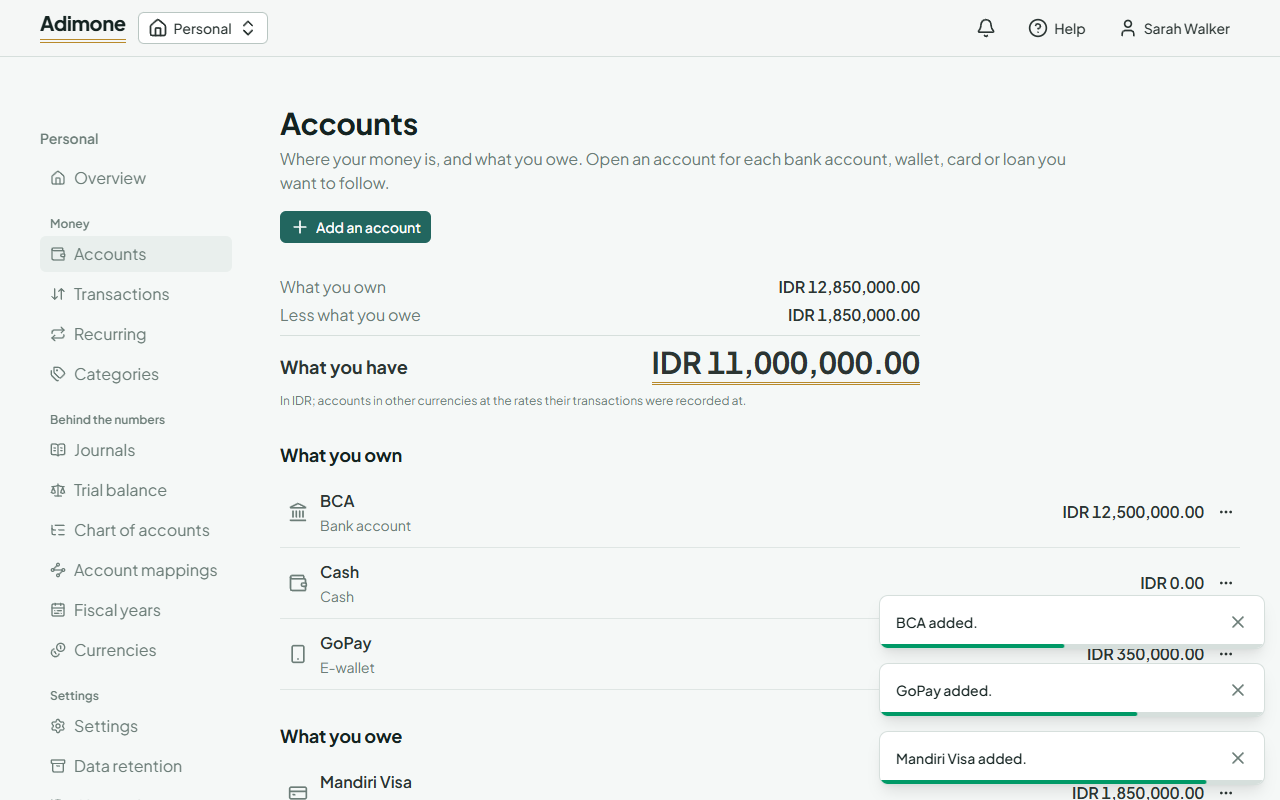
At the top, What you have is what you own less what you owe, in your main currency. Each account shows what it holds now; a card or loan shows what you still owe.
An account can be in another currency once it's enabled in Currencies. Its kind and currency are chosen once. You can change the name or the opening balance later: the old opening entry is reversed and the new one recorded.
When you stop using an account, choose Close from its menu. A closed account takes no new transactions but still counts in what you have, so nothing disappears. Reopen brings it back.
Transactions
- Choose Record a transaction on Transactions or on your overview.
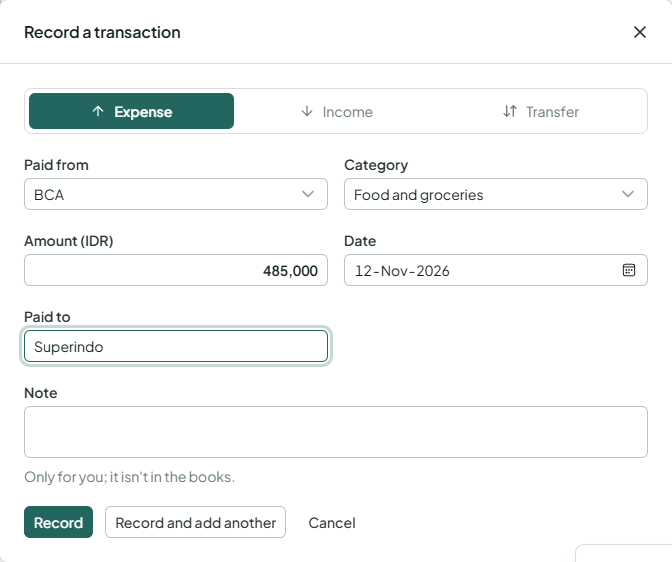
- Pick Expense, Income or Transfer.
- Pick the account it was Paid from (or went Into) and its Category. For a transfer, pick From and To.
- Enter the Amount, the Date and who it was Paid to (or Paid by). A Note is only for you.
- Choose Record, or Record and add another to keep going from the same day and account.
A transfer between two currencies asks for What arrived too. The difference from the day's rate is recorded as an exchange gain or loss.
The list shows the newest first, by day. Filter it by account, category, kind or dates; an account's menu on Accounts opens its own transactions.
To fix a transaction, open it and change it: the old entry is reversed on its own day and the changed one recorded. Delete reverses it the same way and keeps it listed under Deleted ones, so you can always see what happened.
Recurring transactions
Rent, salary and subscriptions come back on a schedule. Add them once on Recurring:
- Choose Add a recurring transaction.
- Fill it in as a transaction, then choose How often, First on and, if it stops, Last on. Months keep the first date's day; the 31st falls on a shorter month's last day.
- Under Each time, choose Record it by itself for a fixed amount, or Ask me first for one that changes (an electricity bill).
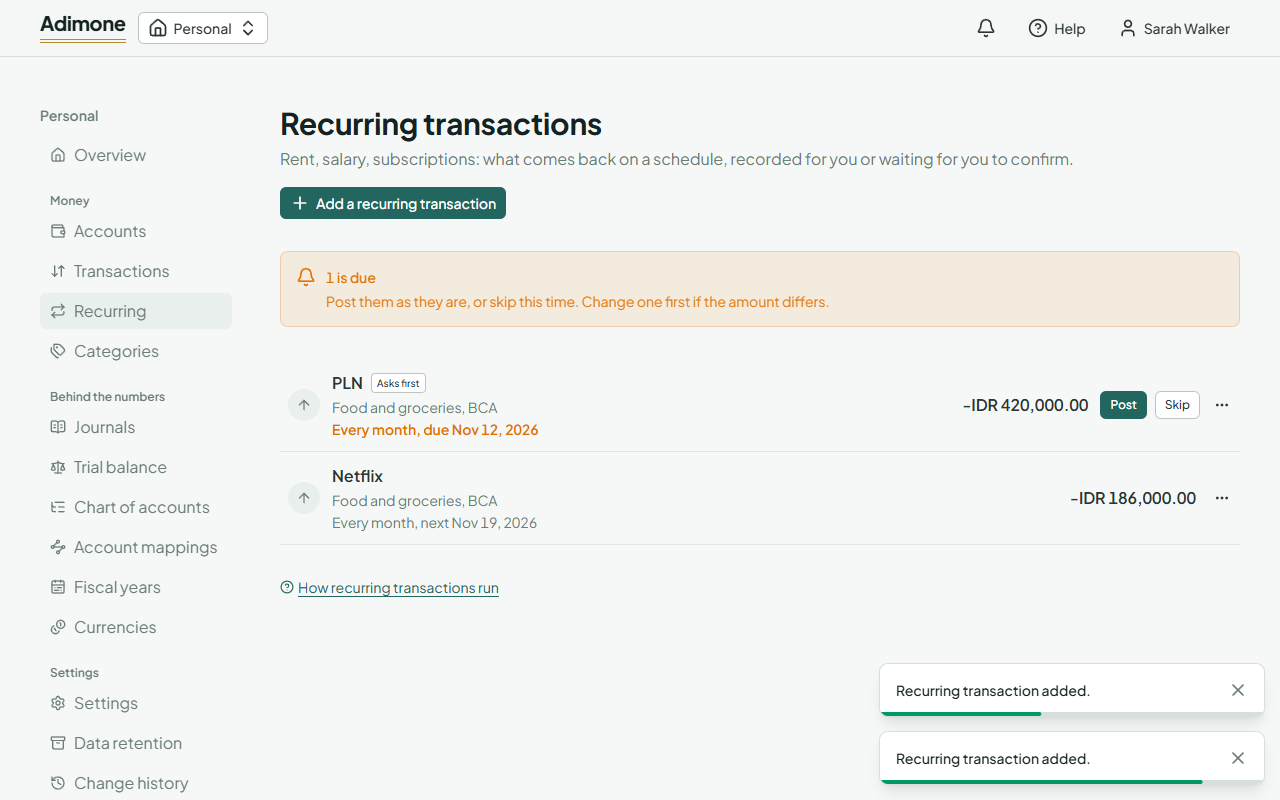
On its day, one that records itself is posted within the hour. One that asks first waits on Recurring and on your overview: choose Post to record it as it is, Skip to pass this time, or change it first. You can also post the next one early from its menu.
Pause stops it until you Resume. When one can't be posted (say its account was closed), it shows Couldn't post with the reason; fix it and save it to run it again. Removing one keeps what it already recorded.
Categories
Categories lists what you spend on and what you earn from. Add your own, rename them, or Hide from lists the ones you don't use: what was recorded in them stays. A category nothing was recorded in can be removed.
Budgets
A budget is what you mean to spend on a category in a month: the same amount every month, in your main currency.
- Open Budgets under Plans and choose Set a budget.
- Pick the Spending category and enter the amount A month.
- Choose Save budget.
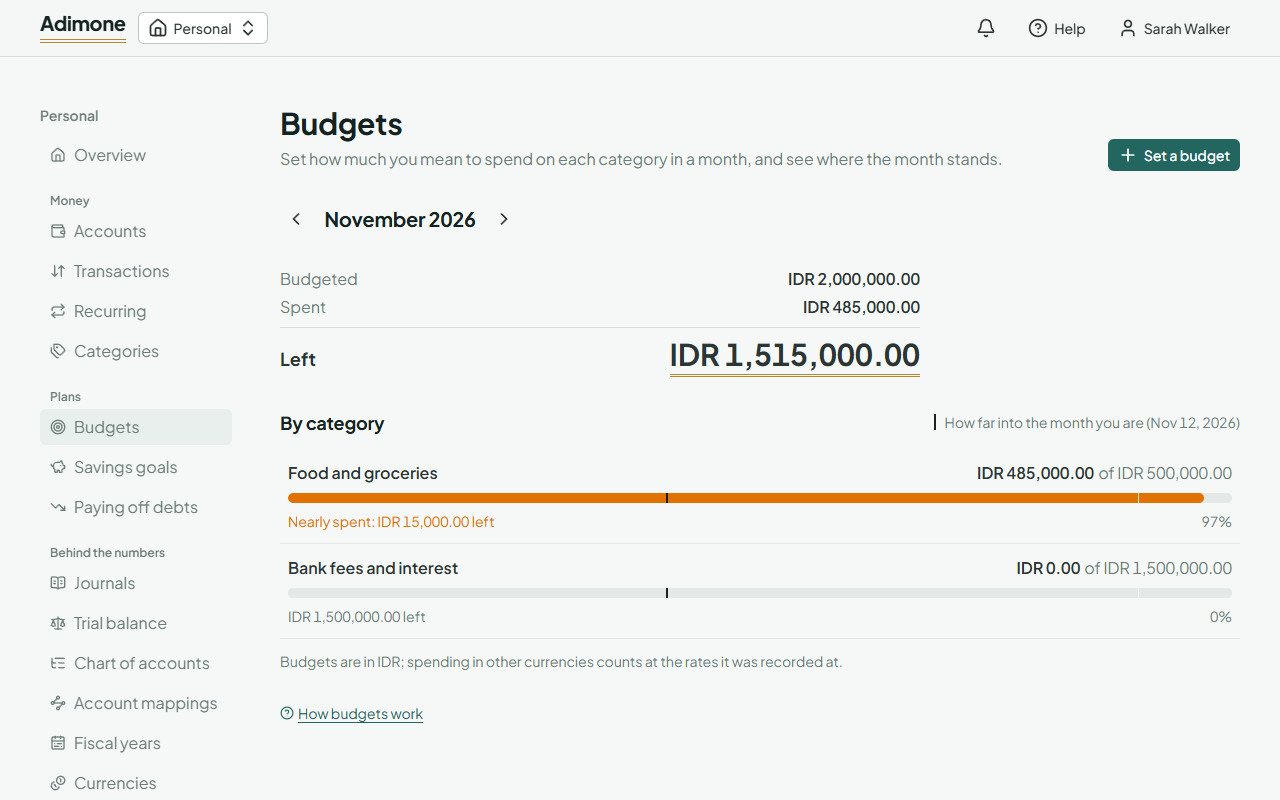
At the top, Left is what your budgets have left this month (Over budget once you've spent more). Each category shows what it spent, refunds taken off, against its budget. From 90% it's Nearly spent; past the budget it shows how much over. The line across the bars marks how far into the month you are: a bar past it is spending ahead of the month.
The first time a category goes over its budget in a month, Adimone tells you once in your notifications and by email. Use the arrows to look at earlier months; a changed amount counts for those months too. Open a budget to change its amount or Remove budget.
Savings goals
A goal is something you're saving towards, with a target and, if you like, a date.
- Open Savings goals and choose Set a goal.
- Give it a Name and a Target.
- Under Progress, pick An account's balance to follow an account you keep the money in, or What I put aside to keep the amount yourself.
- Add a Reach it by date if there is one, and choose Set goal.
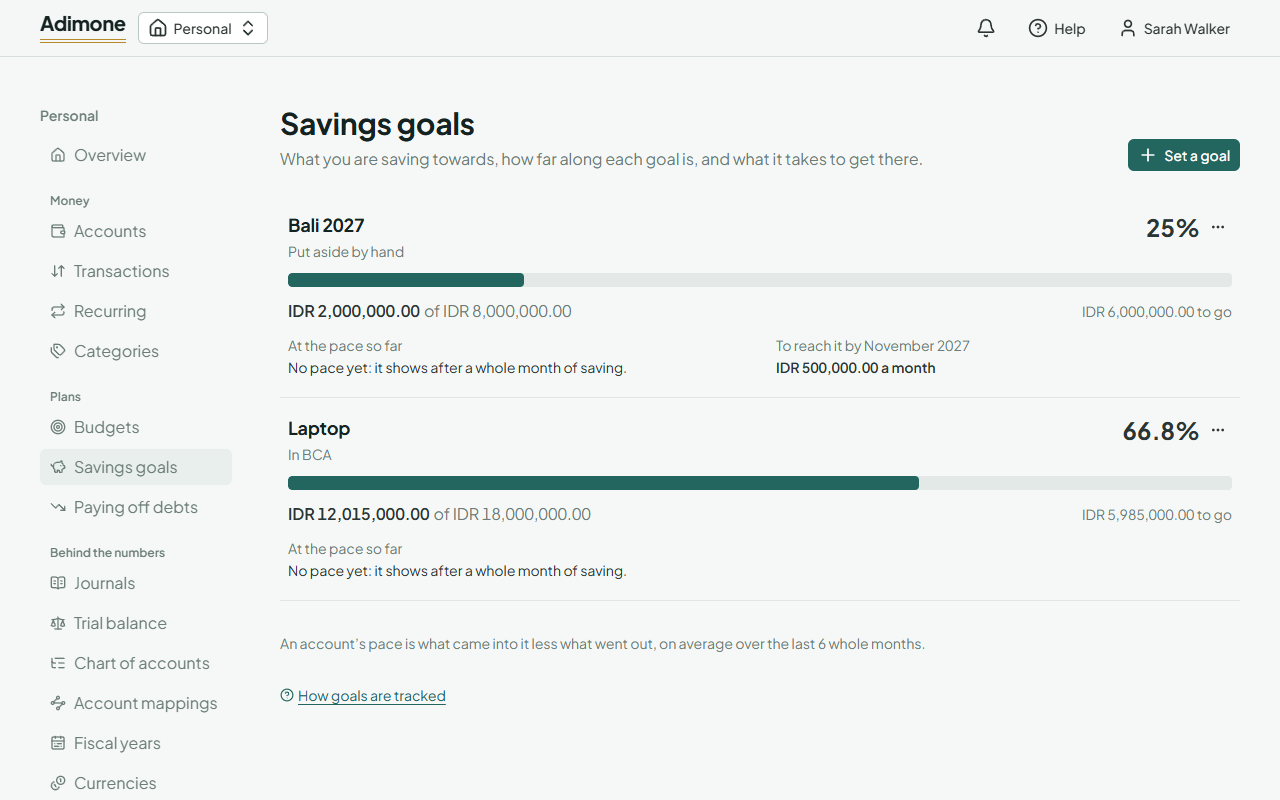
Each goal shows how far along it is and two ways to look ahead:
- At the pace so far: what it gains a month and when it's reached at that pace. For an account it's what came in less what went out, on average over the last 6 whole months; for an amount you keep yourself, what you put aside over the months since you set the goal.
- To reach it by the date: what a month must add from now.
For a goal you keep yourself, choose Change or update what you put aside from its menu whenever you add to it. Archive sets a goal aside without losing it; removing a goal leaves its account and money as they are.
Paying off debts
Paying off debts plans paying off your cards and loans. Every debt gets its minimum each month, and whatever you can pay beyond that goes to one debt at a time; when one is paid off, its minimum moves on to the next.
- Check each card and loan has its interest rate and minimum payment. A debt without them says so: choose the pencil beside it to add them.
- Enter what you can pay More each month beyond the minimums.
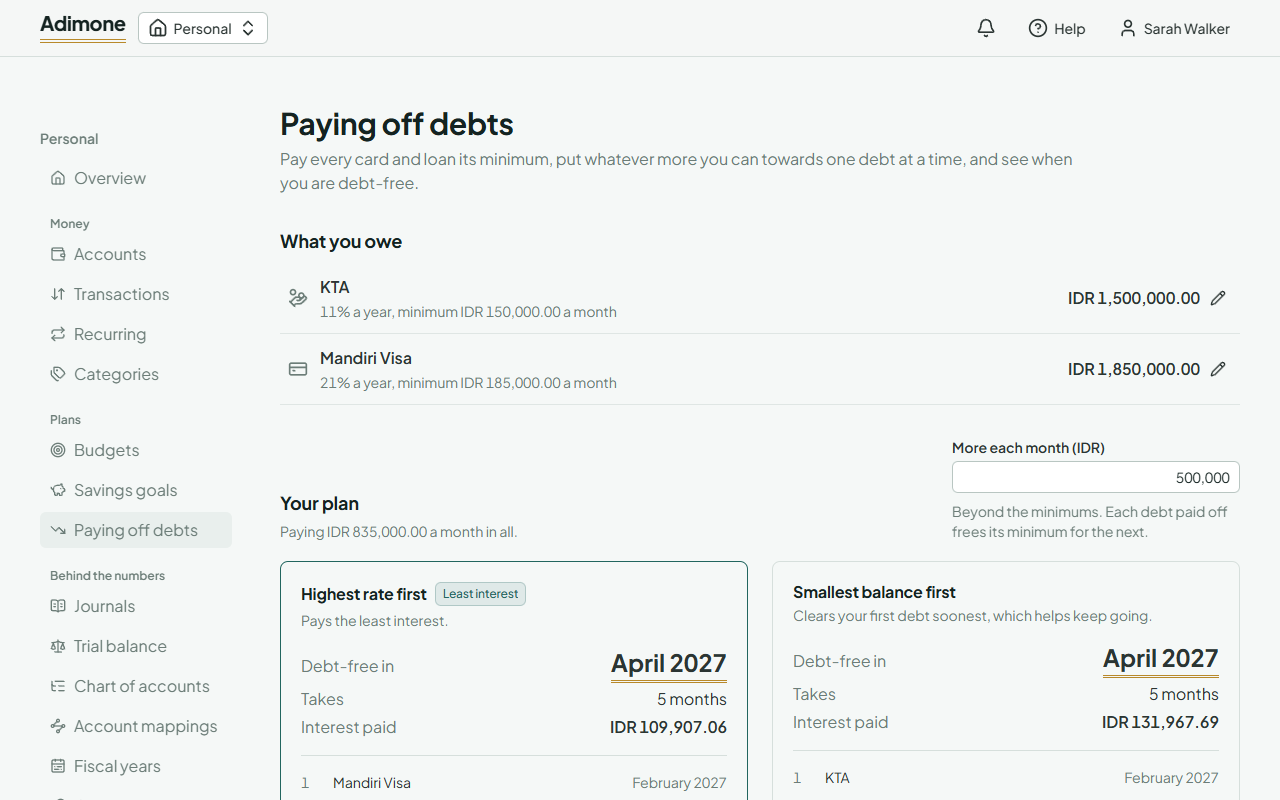
The plan shows two orders side by side:
- Highest rate first pays the least interest.
- Smallest balance first clears your first debt soonest, which can help you keep going.
Each shows when you're Debt-free, how long it takes and the Interest paid, with the month each debt is paid off. The order that pays less interest is marked. If the payments don't cover the interest, the plan says it won't finish within 50 years. Debts kept in another currency are left out.
Net worth
Net worth is what you own less what you owe, every account valued at the latest exchange rate in Currencies. Under it you see how much it moved since the end of last month, and a line of how it stood at the end of each month (1, 2 or 5 years back).
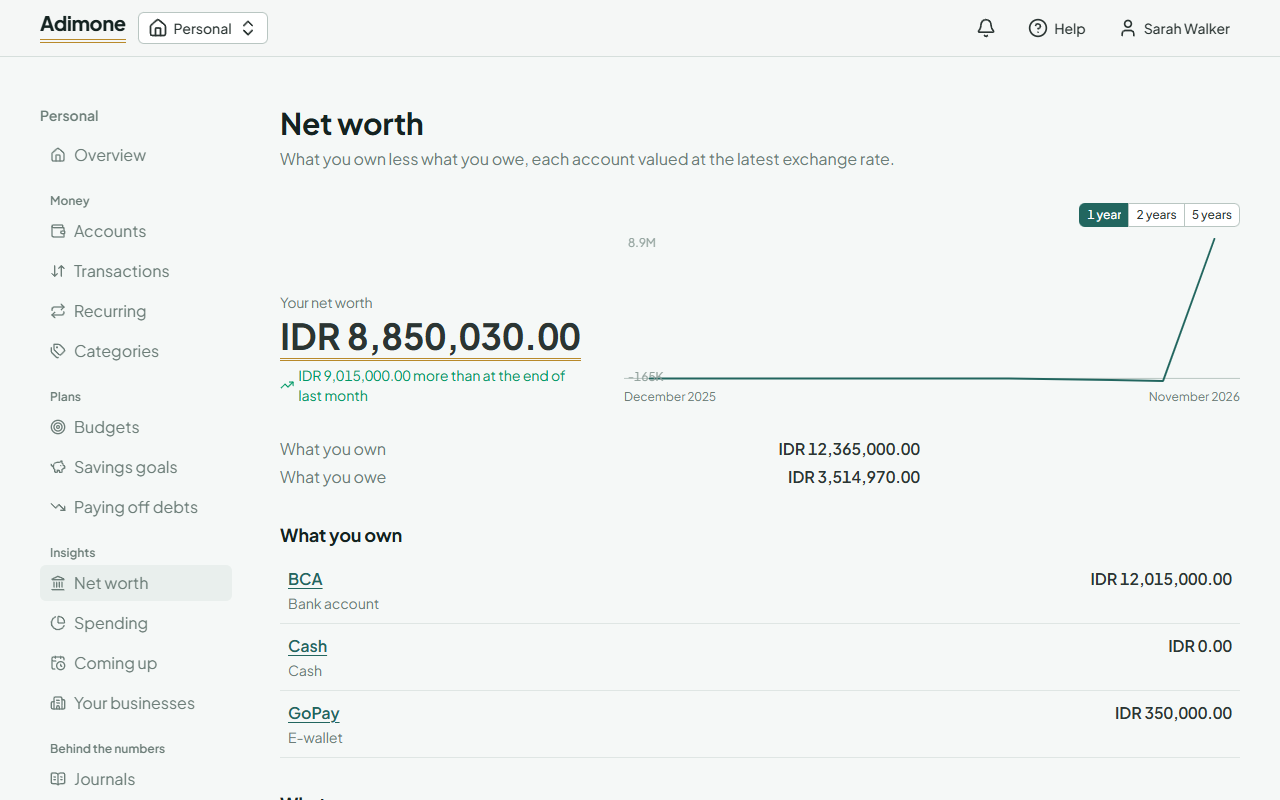
- Each account is listed under What you own or What you owe, closed ones included. Choose one to see its transactions.
- An account in another currency shows its own balance and the rate used. One marked No current rate is valued at the rates its money came in at: add a rate for its currency to value it today.
- The months before this one are valued at the rates things were recorded at, so the history doesn't move when rates do.
- If you link a business you own (see Your businesses), Counting your share of your businesses shows your net worth with your share of each business's equity in place of what its stake account holds.
The home page shows What you have at the rates things were recorded at; when a rate has moved since, it also shows your net worth at today's rates.
Spending
Spending shows a month's Income, Spending and what you Saved, with your savings rate: the part of what came in that you kept. Use the arrows to move between months; the bars show what you saved in each of the months before.
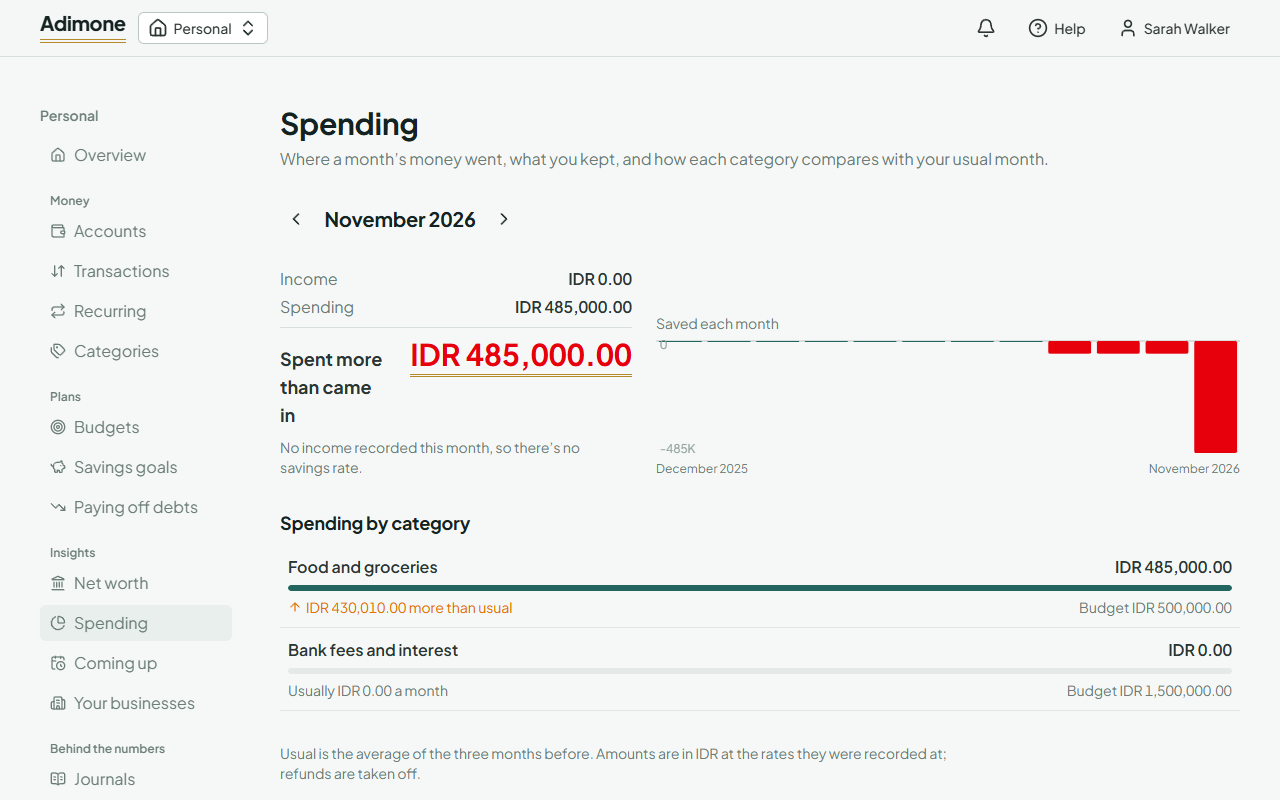
Each spending category shows what it took this month beside its usual month (the average of the three months before), and its budget if it has one. A category that took a tenth more or less than usual says so. Choose a category to see its transactions for that month. Refunds are taken off what a category spent.
Coming up
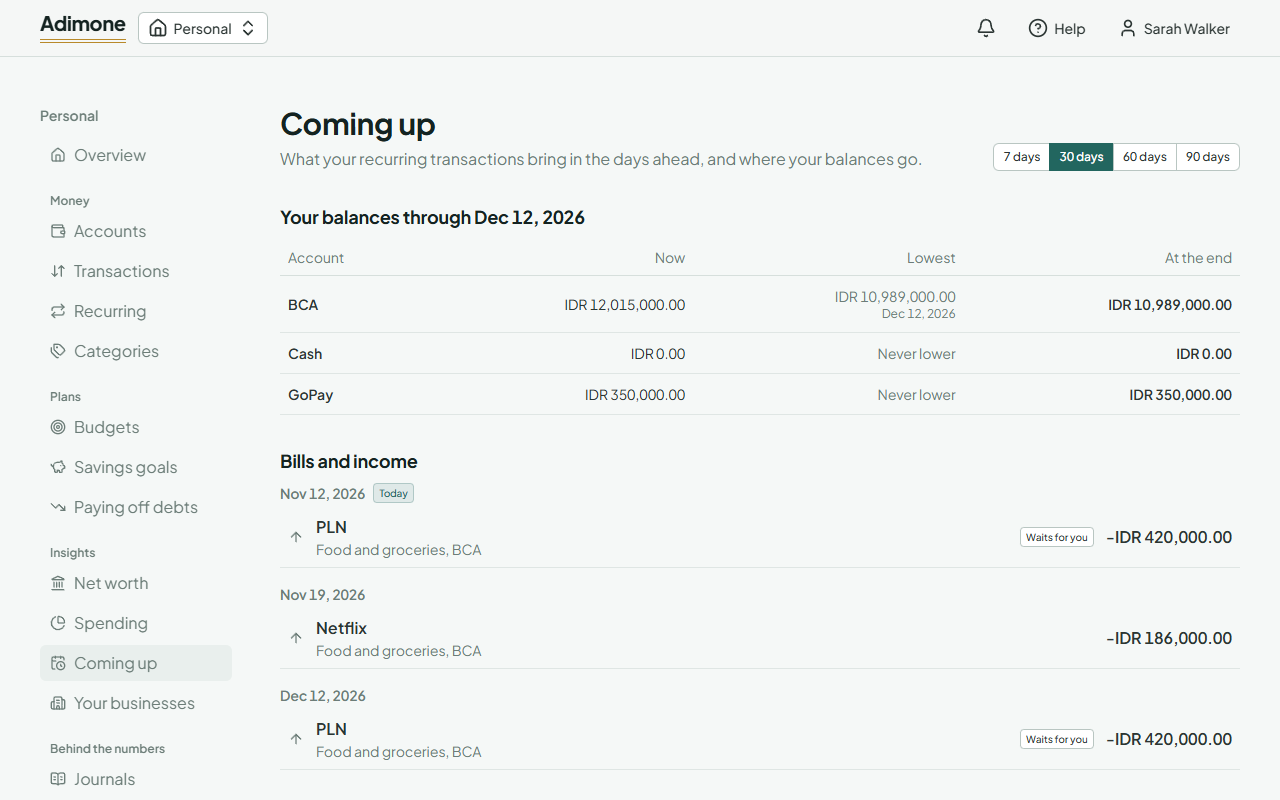
Coming up looks ahead 7, 30, 60 or 90 days at what your recurring transactions bring:
- Your balances shows each cash, bank and e-wallet account now, the lowest it falls to and when, and where it ends. An account that falls below zero is called out at the top, and on the home page for the next 30 days, so you can move money in before then.
- Bills and income lists every coming occurrence by day. Overdue ones are marked; Waits for you marks those you post yourself.
Subscriptions we found lists spending you pay every month to the same payee for about the same amount, three months running, with no recurring transaction for it. Choose Make it recurring to make one from it, filled in from the latest payment and starting on its next date (if that date has passed, it waits for you to post it). Once it is recurring, it leaves this list and shows up in your balances ahead.
Your businesses
If you own a business that keeps its books in Adimone, link it under Your businesses to count your share of it in your net worth. You need to see the business's financial statements.
- Choose Link a business and pick the business.
- Enter the Share you own (%).
- Choose where to keep your stake: A new account (an investment account in your currency, named after the business) or an investment or other account you already have.
Money you move into that account is capital you put in; money you take out of it is a draw. Nothing is recorded in the business itself. Each business shows what your share is worth (the business's assets less its liabilities, times your share, at today's rate), what you put in less what you took out, and the business's equity. Choose it to see, month by month, what you put in and took out beside the business's profit. If you stop seeing the business's financial statements, its name and figures are hidden and its stake account stays.
Behind the numbers
Every transaction is a journal entry in a chart of accounts made for personal money. You don't need it day to day, but it's there under Behind the numbers: journals, the trial balance, the chart of accounts, fiscal years and currencies. Fiscal years are added by themselves as you record older or newer dates.
Your time zone and how long details are kept
Settings holds your time zone: the day a transaction recorded today is dated, and when recurring ones post. Data retention sets how many years of detail are kept before older years are summed up into balances (see Data retention).