
Sell at the till
Scan or tap items into a sale, take cash with the change worked out, split a payment between cash and a card, and find past sales.
The till is where a cashier rings up sales during an open shift. Each sale is priced and taxed as you build it, paid on the spot, and posted to your books at once: the money into the drawer or the account for the way it was paid, the items out of stock.
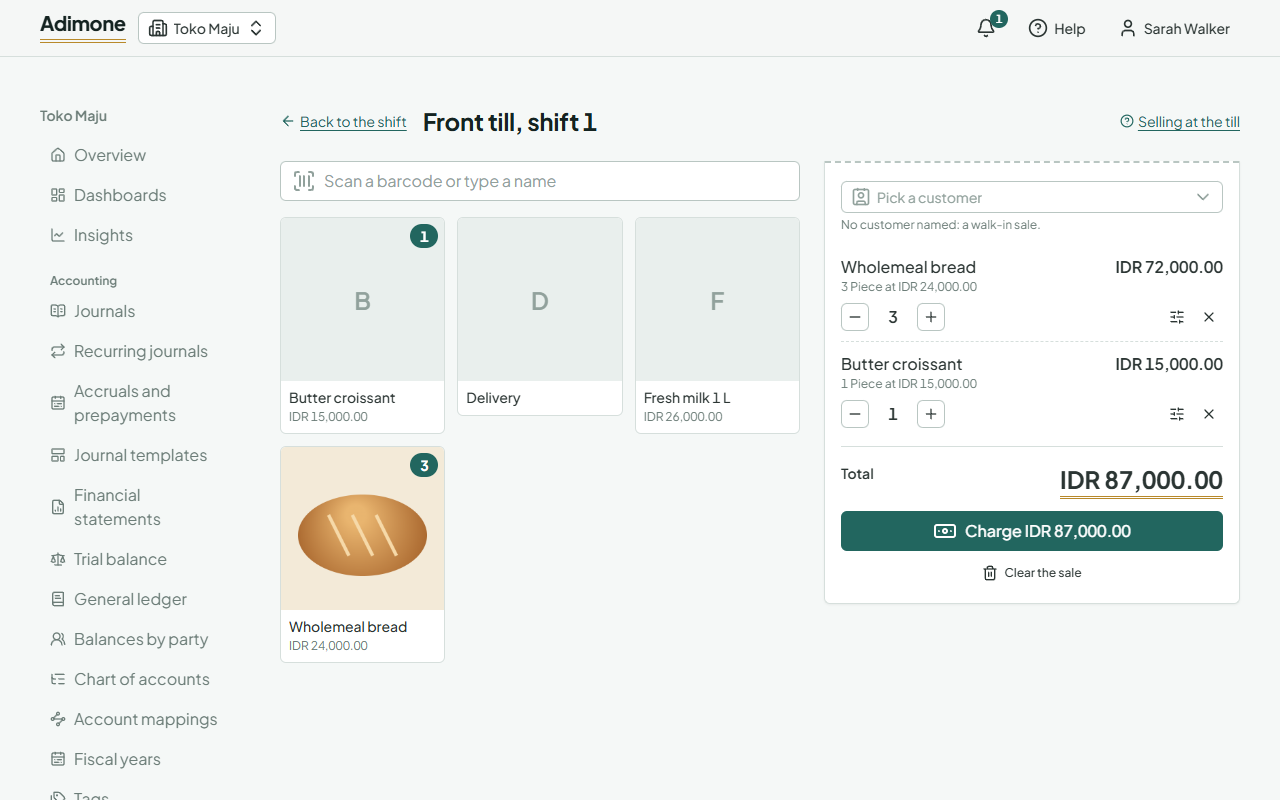
Ring up a sale
- Open the shift's page and choose Sell. The till opens with the scan box ready.
- Add items:
- Scan a barcode, or type it and press Enter. The item goes in, counted in the barcode's unit (a carton's barcode adds a carton).
- Tap an item's tile to add one. Type in the box to search by name or code; when one item is left, Enter adds it.
- Use + and − on a line to change how many; a line at zero leaves the sale. Choose a line to type its quantity.
- To sell to a known customer, pick them at the top of the sale; their price list and tax apply. Without one, it's a walk-in sale.
The total under the lines is the one the customer pays, worked out by the server as the sale changes, with each tax shown when there is one.
Take payment and give change
- Choose Charge.
- For cash, enter what the customer hands over, or choose Exact or one of the round amounts below it.
- The Change shows what to give back. Choose Take to record the sale.
- Give the change shown. To hand over a receipt, choose Print receipt: the browser's print dialog opens with it sized to the receipt paper. Then choose Next sale.
If prices changed between showing the total and taking payment (someone edited a price list, say), the till says so with the new total. Tell the customer and take payment again.
Split payments and change
A customer can pay part by card and the rest in cash, or use several ways:
- In Take payment, choose the way to add under Split it: card, e-wallet or bank transfer. It starts with what is still to pay.
- Change its amount if needed, and enter the card's approval code or the payment's reference, so it can be matched with the bank later.
- Cash covers the rest; only cash gives change. Still to pay shows what isn't covered yet.
A register takes cards, e-wallets and transfers only when it has an account for them: set it on the register. Cash goes into the register's drawer and counts toward the shift's expected cash.
Prices, discounts and lots
Choose a line to see its details:
- Price and Discount can be changed only by people allowed to override prices at the till (the Owner and Administrators, unless you give it to others). A sale with a changed price shows Price changed and goes on the owner's review list.
- An item with no price anywhere asks for one; anyone selling can type it.
- For an item tracked by lot or serial number, scan or type the lot. Left empty, the lot that expires first goes.
Find a sale
- On a shift's page, See its sales lists that shift's sales.
- Sales under Point of sale lists every register's sales, newest first, with a register filter.
Open a sale to see what was sold at what price, the taxes, how it was paid with any card reference, the change, and its journals. From there you can print the receipt again (marked COPY) or email it, and refund or void the sale.